> For the complete documentation index, see [llms.txt](https://docs.seemoredata.io/external-docs/llms.txt). Markdown versions of documentation pages are available by appending `.md` to page URLs; this page is available as [Markdown](https://docs.seemoredata.io/external-docs/fundamentals/getting-set-up/authentication/setup-entra-id-sso.md).
# Setup Microsoft Entra ID SSO
This integration enables authentication via **OpenID Connect (OIDC)** using **Microsoft Entra ID** (formerly Azure Active Directory).
{% hint style="info" %}
**Required role to configure:** [Admin](/external-docs/fundamentals/settings/user-roles.md) or higher.
Users with lower roles can view this feature but cannot change its configuration.
{% endhint %}
## Overview
Seemore integrates with Microsoft Entra ID using:
* **OIDC (OpenID Connect)** — user authentication through your organization's Microsoft identity platform
This setup allows Entra ID administrators to:
* Let users sign in with their work or school Microsoft accounts
* Centralize access control in Microsoft Entra ID
{% hint style="info" %}
Automated user provisioning (SCIM) for Microsoft Entra ID is not available at this time. Invite users from Seemore so they receive an invitation and can complete sign-in with Entra ID.
{% endhint %}
***
## Prerequisites
Before you start:
* **Admin rights** in both **Microsoft Entra ID** (or help from your Azure AD administrator) and **Seemore** (workspace administrator).
* An **Entra ID tenant** (your organization's directory in Microsoft Azure).
* The **tenant domain** for your directory (for example `contoso.onmicrosoft.com`). You can find it in the Microsoft Entra admin center under **Identity** > **Overview** > **Primary domain**, or follow Microsoft's guidance for locating your tenant ID and domain.
***
## Setup Steps
### Step 1 — Register an application in Microsoft Entra ID
1. Sign in to the [Azure portal](https://portal.azure.com) and open **Microsoft Entra ID** (Azure Active Directory).
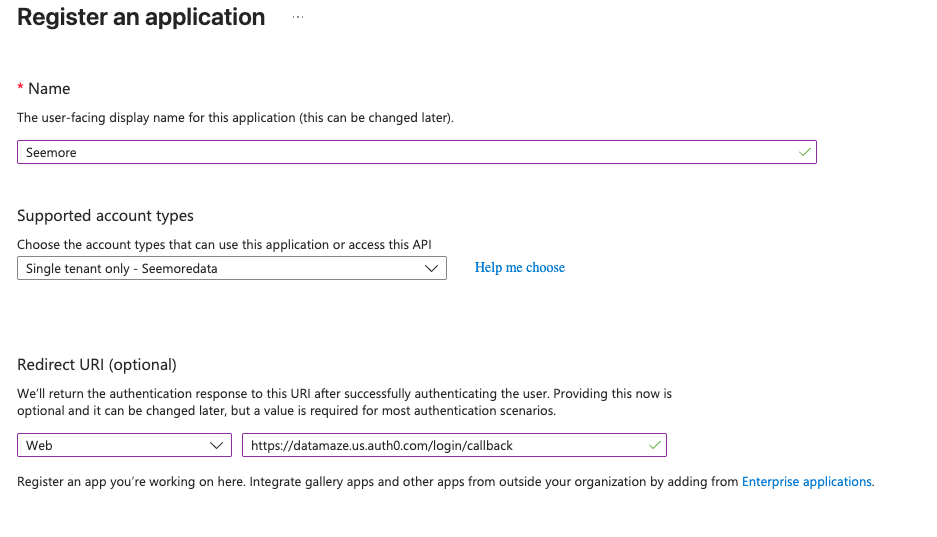
2. Go to **App registrations** > **New registration**.
3. Configure:
* **Name:** a clear name such as `Seemore`
* **Supported account types:** choose the option that matches who should sign in (for example, **Accounts in this organizational directory only** for a single-tenant app).
4. Under **Redirect URI**, select **Web** and enter: `https://auth.seemoredata.io/login/callback`. You can add or edit redirect URIs later under **Authentication**.
5. Select **Register**.
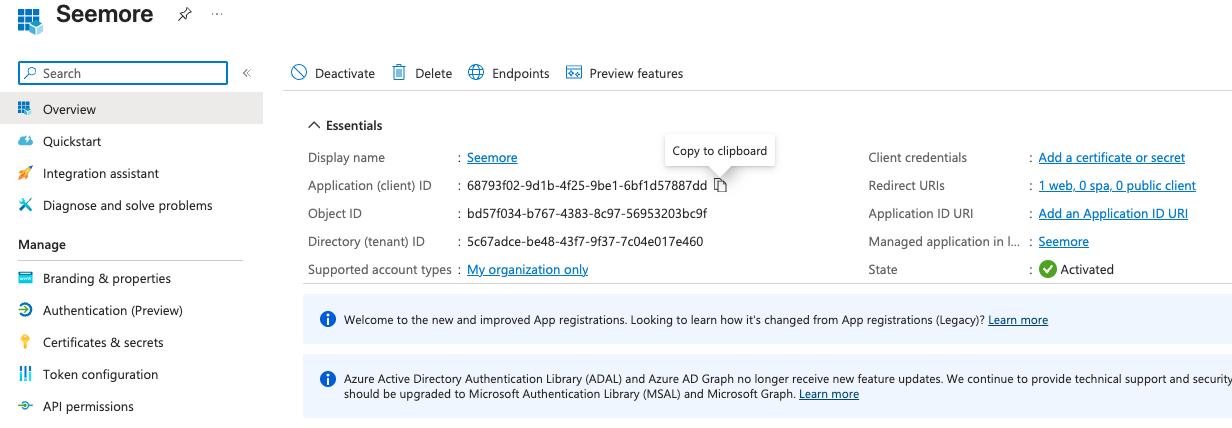
6. On the app **Overview** page, note the **Application (client) ID** — you will need the client ID in Seemore.
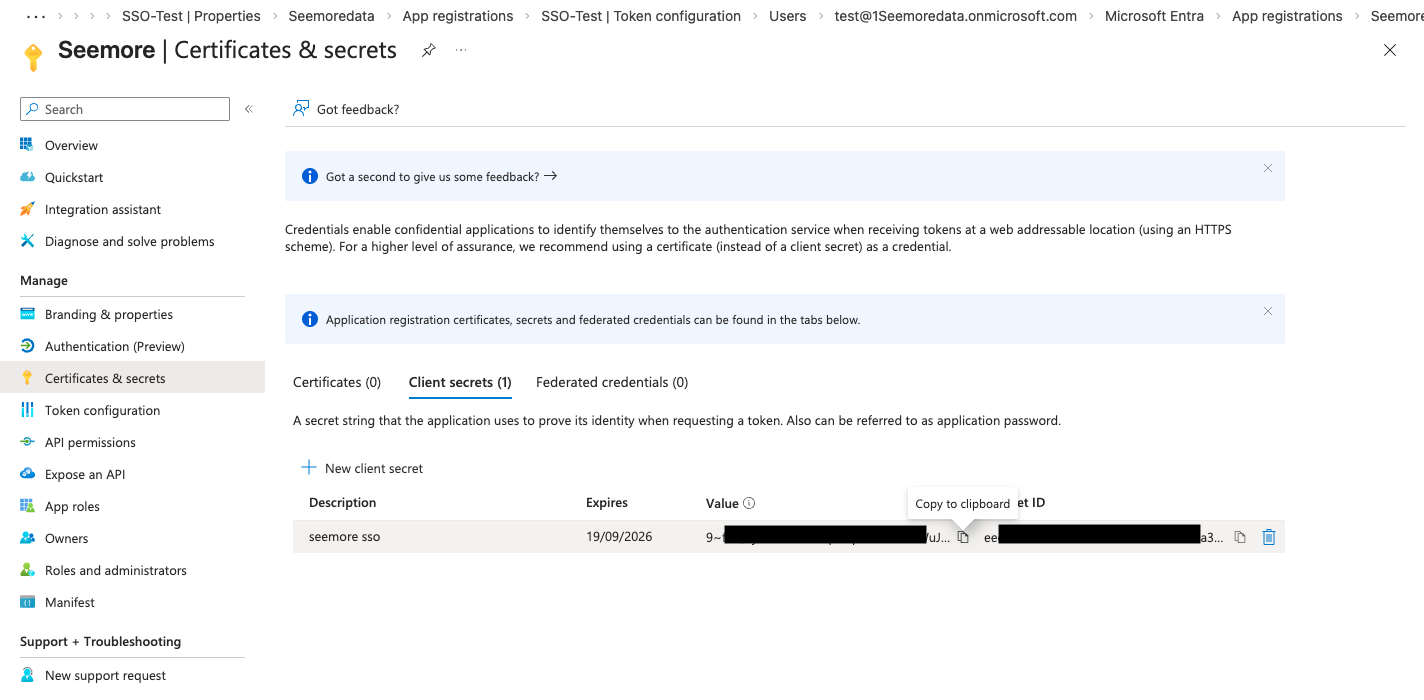
7. Create a **client secret**:
* Go to **Certificates & secrets** > **Client secrets** > **New client secret**.
* Add a description and expiry, then **Add** and copy the **Value** (secret). Store it securely; it will not be shown again.
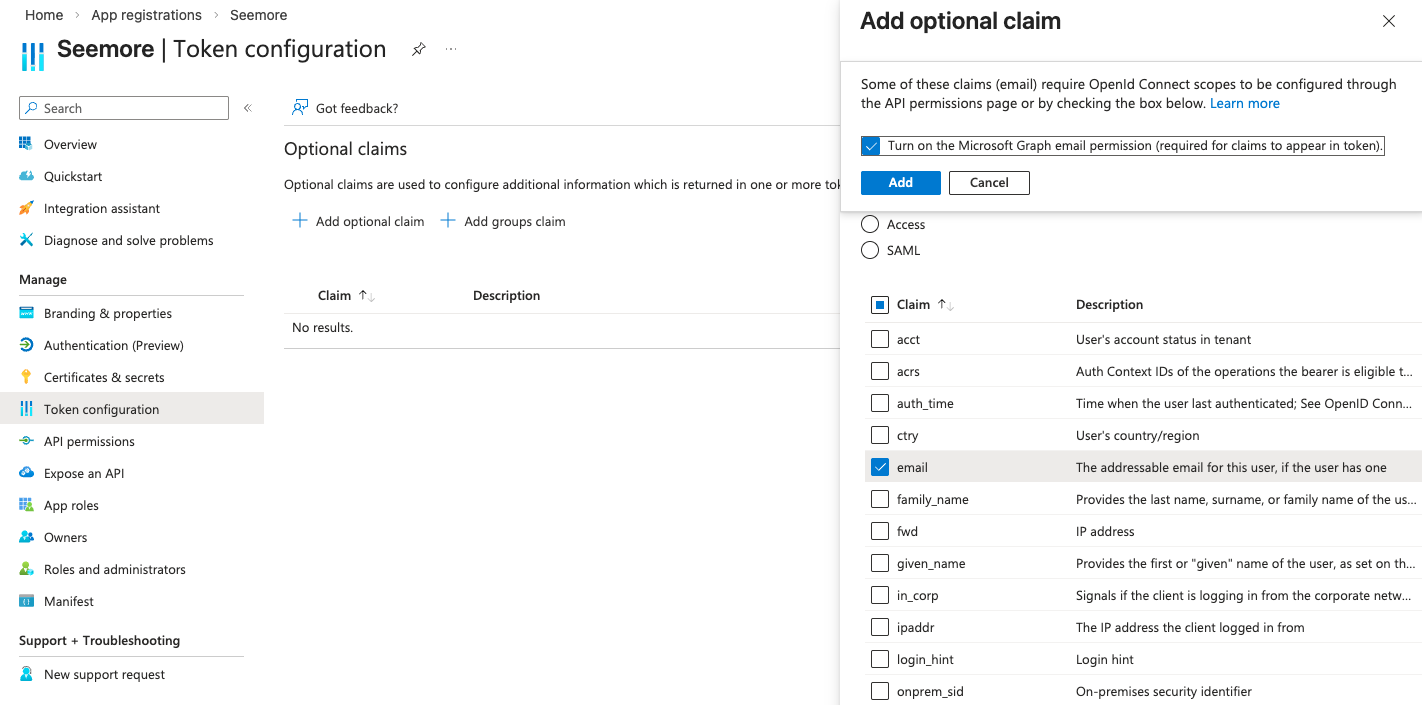
8. Under **Token configuration**, **Add optional claim**:
* Token type: **ID**
* Enable **email** so user profiles in Seemore receive a reliable email identifier when available.
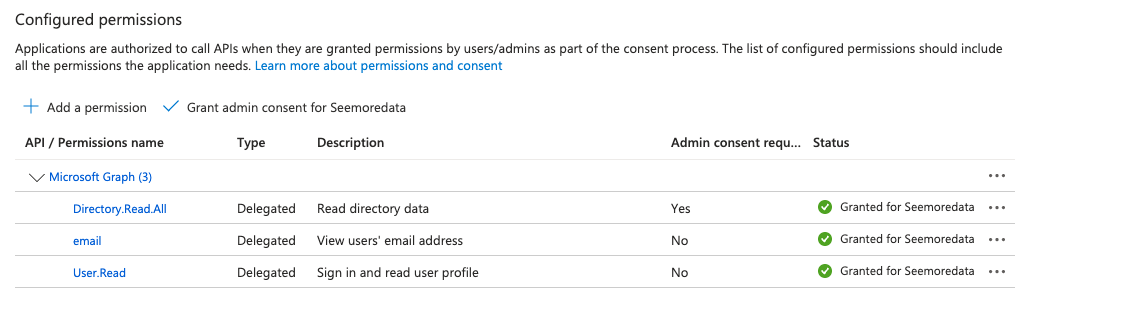
9. Under **API permissions**, add **Microsoft Graph** delegated permissions as needed for your organization. At minimum, **User.Read** is commonly used so users can sign in and the application can read basic profile information. **Directory.Read.All** is optional and may require administrator approval.
{% hint style="info" %}
If your Microsoft Entra ID users do not have a **mail** attribute populated, optional **email** claims may still be empty. In that case, ensure users have a valid email in their profile, or work with your administrator to align **mail** and sign-in names with your identity policies.
{% endhint %}
***
### Step 2 — Grant admin consent (if required)
After registering the application, you may need to grant organization-wide consent before users can sign in. Whether this is required depends on your tenant's consent policies.
1. In the Azure portal, go to **Enterprise applications** and open the enterprise application that corresponds to your app registration (or use **App registrations** > your app > **API permissions**).
2. Use **Grant admin consent for \[your organization]** when prompted and when you have the appropriate administrator role (for example **Global Administrator** or **Privileged Role Administrator**, depending on your policy).
{% hint style="warning" %}
If **Grant admin consent** is unavailable, your account may not have permission to consent on behalf of the organization. Ask a Global Administrator to grant consent, or use your organization's documented admin-consent process.
{% endhint %}
***
### Step 3 — Configure Microsoft Entra ID SSO in Seemore
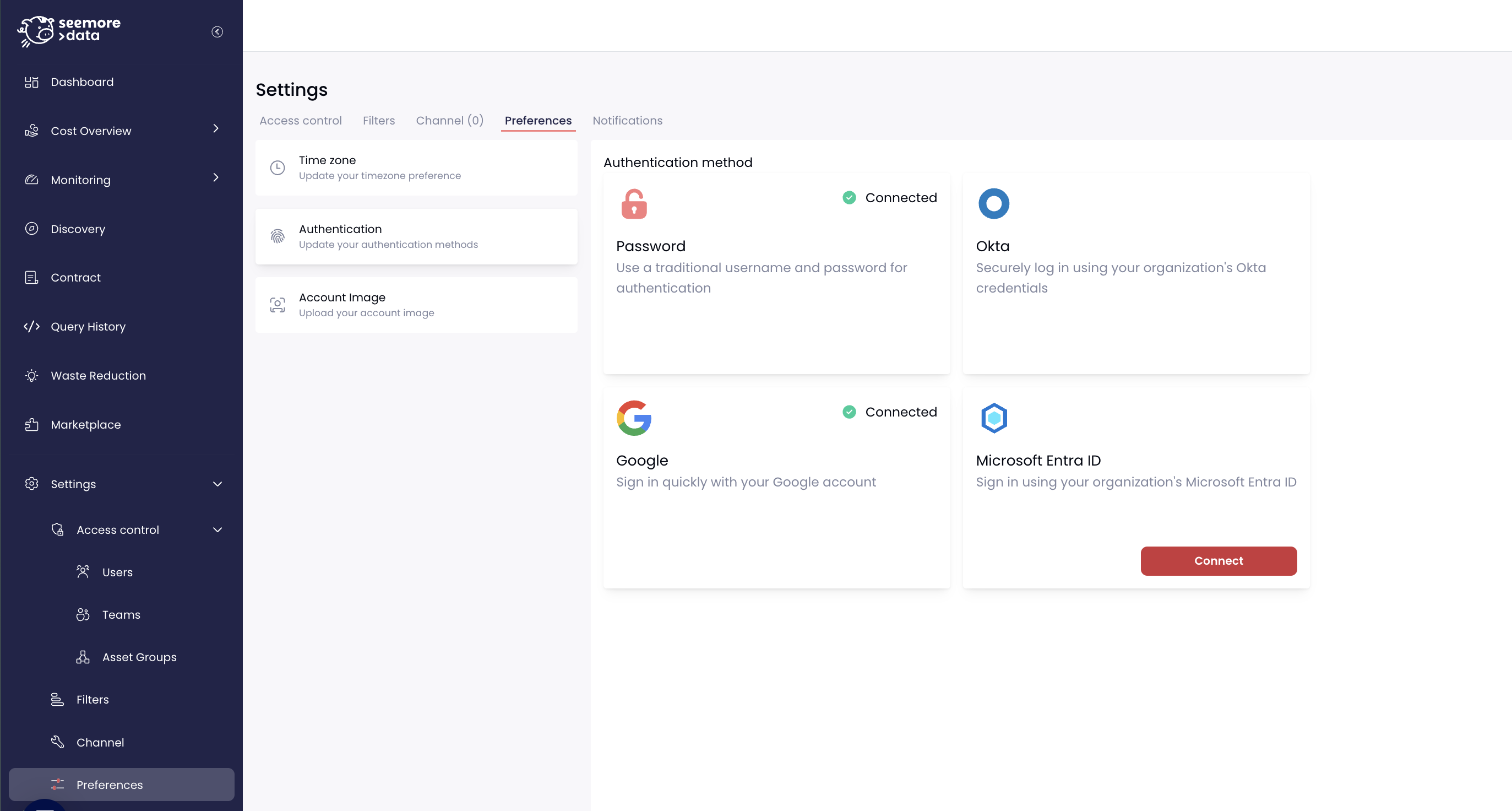
1. In Seemore, open **Settings** > **Preferences** > **Authentication**.
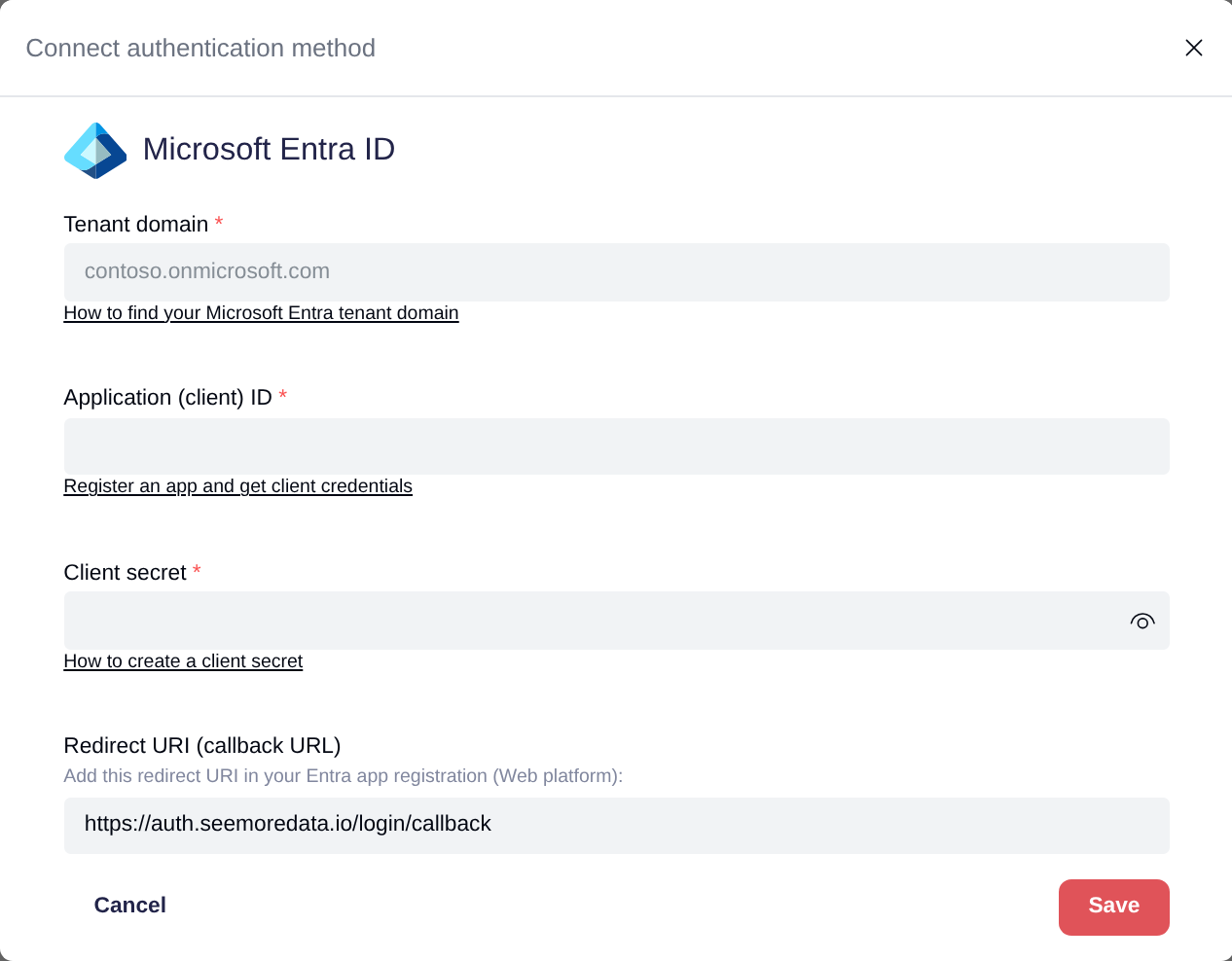
2. Select **Microsoft Entra ID** and open the connection form.
3. Verify that the **Redirect URI (callback URL)** displayed on the form matches the URI you registered in Azure (`https://auth.seemoredata.io/login/callback`).
4. Enter:
* **Tenant domain** — your Entra ID primary domain (for example `contoso.onmicrosoft.com`). Use the **primary domain** for your tenant, not a GUID.
* **Application (client) ID** — from the app registration **Overview** in Azure.
* **Client secret** — the secret value you created in Azure.
5. Save the connection.
***
### Step 4 — Test sign-in and invitations
1. From Seemore, invite a **user** who belongs to your Entra ID tenant (or use an existing test account).
2. Open the invitation link in a browser session and complete sign-in with Microsoft when prompted.
3. Confirm you are returned to Seemore and signed in successfully.
If you only need to verify the connection without invitations, use your organization's normal sign-in flow (for example, **Sign in with Microsoft** or your workspace's SSO entry point) as configured for your tenant.
***
## Troubleshooting
| Symptom | Likely cause | What to try |
| ----------------------------------------------- | ----------------------------------------------------------------- | ------------------------------------------------------------------------------------------------------------------------------------------------- |
| Sign-in fails with an invalid or expired secret | Client secret expired or mistyped | Create a new client secret in Azure and update it in Seemore **Settings** > **Preferences** > **Authentication** > **Microsoft Entra ID**. |
| User profile has no email | **mail** not set in Entra ID, or **email** token claim not issued | Add optional **email** in **Token configuration**; ensure the user has a contact email where appropriate. |
| Error about "unmanaged" organization or domain | Microsoft directory is not fully managed for your domain | Verify your organization's custom domain in Azure and complete the DNS steps Microsoft recommends so the domain is managed in the correct tenant. |
| **Grant admin consent** is disabled | Insufficient permissions | Use an account with rights to grant tenant-wide consent, or ask your Microsoft Entra administrator to approve the app. |
***
## Validation checklist
✅ App registration in Microsoft Entra ID includes the correct redirect URI from Seemore\
✅ Client ID and client secret are saved in Seemore\
✅ A test user can sign in and land in Seemore\
✅ User appears in Seemore with the expected identity (email or UPN, depending on your configuration)
***
## Related resources
* [Register an application with the Microsoft identity platform](https://learn.microsoft.com/en-us/entra/identity-platform/quickstart-register-app)
* [Find your Microsoft Entra tenant ID and domain](https://learn.microsoft.com/en-us/azure/cost-management-billing/manage/find-tenant-id-domain)
* [Optional claims in the Microsoft identity platform](https://learn.microsoft.com/en-us/entra/identity-platform/optional-claims)
* [Permissions and consent in the Microsoft identity platform](https://learn.microsoft.com/en-us/entra/identity-platform/permissions-consent-overview)