scale-balancedAuto Scaler

This automation optimizes multi-cluster warehouses by scaling cluster count in based on actual query load, reducing idle cluster spend.

Overview

Auto Scaler optimizes multi-cluster Snowflake warehouses by adjusting the number of running clusters based on real-time query load. When clusters are running but underutilized, it scales them in to reduce idle cost. Snowflake natively handles scaling out when load increases; Auto Scaler complements this by removing clusters that are no longer needed. This automation is designed for Snowflake Enterprise edition, where multi-cluster warehouses enable dynamic scaling.


How It Works

Dynamic Cluster Scaling

Seemore continuously evaluates whether your multi-cluster warehouse is using more clusters than current demand requires. When additional clusters are no longer contributing meaningful performance value, Auto Scaler reduces cluster count to limit unnecessary spend. Snowflake still handles scale-out when demand rises, while Seemore helps keep your configuration efficient once that demand subsides.


Safe Scale-In Logic

Auto Scaler only scales down when it's safe to do so:

  • No queued queries — scaling in is paused if any queries are waiting.

  • Minimum uptime — clusters must run for at least one minute before being considered for scale-in.

  • Within your bounds — cluster count never goes below your configured minimum or above your configured maximum.


Cost-Free Monitoring

Seemore runs lightweight internal checks that read only metadata and usage statistics. This means:

  • Warehouses are never reactivated by monitoring.

  • The process is completely cost-free.

  • Performance remains unaffected.


Cluster Behavior Over Time

The graphs below illustrate how cluster count changes over time with and without Auto Scaler.

Without Auto Scaler

Cluster count over time without Auto Scaler
Without Auto Scaler, additional clusters can remain active longer after demand declines, extending cluster uptime and increasing idle time.

With Auto Scaler

Cluster count over time with Auto Scaler
With Auto Scaler enabled, cluster count is reduced more efficiently as demand subsides, shortening cluster uptime by minimizing unnecessary idle time.
Measured Impact on Warehouses

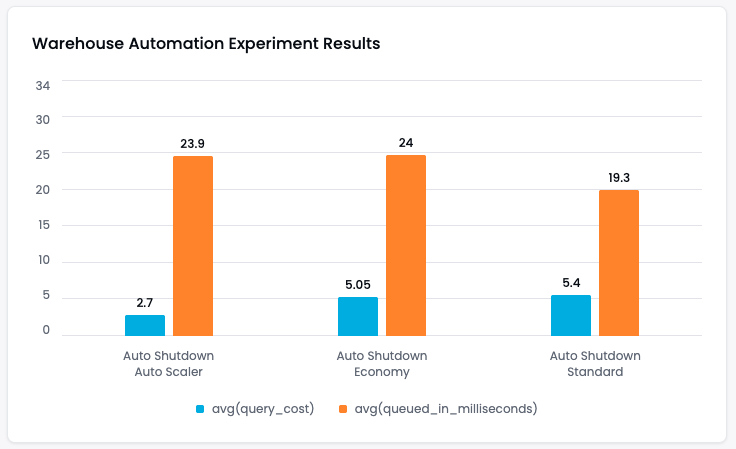
To evaluate Auto Scaler in a controlled scenario, we ran the same predictable workload over time on three warehouse configurations:

  • Auto Shutdown + Auto Scaler

  • Auto Shutdown + Economy scaling policy

  • Auto Shutdown + Standard scaling policy

Warehouse automation experiment comparing average query cost and average queued time across Auto Scaler, Economy, and Standard configurations
In this experiment, Auto Scaler reduced average query cost by about 2x compared with the Economy and Standard scaling policies, while keeping queue time in a similar range.
This experiment highlights two practical outcomes:

  • Lower cost per query — the Auto Scaler warehouse achieved an average query cost of 2.7, compared with 5.05 for Economy and 5.4 for Standard.

  • Strong overall efficiency — Auto Scaler delivered better cost efficiency than the Economy scaling policy while maintaining similar queue performance in this workload.

Results will vary by workload, but this experiment shows how Auto Scaler can improve warehouse efficiency beyond static scaling policies when demand changes over time.


Benefits

  • Reduced multi-cluster idle spend — fewer clusters running when load drops

  • Non-intrusive operation — never terminates active queries

  • Fully automated — continuously manages cluster count in real time

  • Works alongside Snowflake — complements Snowflake's built-in scale-out behavior


Prerequisites

Auto Scaler requires:

  • Snowflake Enterprise edition — multi-cluster warehouses are not available on Standard edition.

  • Multi-cluster warehouse — the warehouse must be configured with max_cluster_count > 1.

  • MANAGE WAREHOUSES privilege — if you haven't already granted it during initial setup, run:

For full setup instructions, see Create Snowflake User and Privileges.

circle-exclamation

How to Turn It On

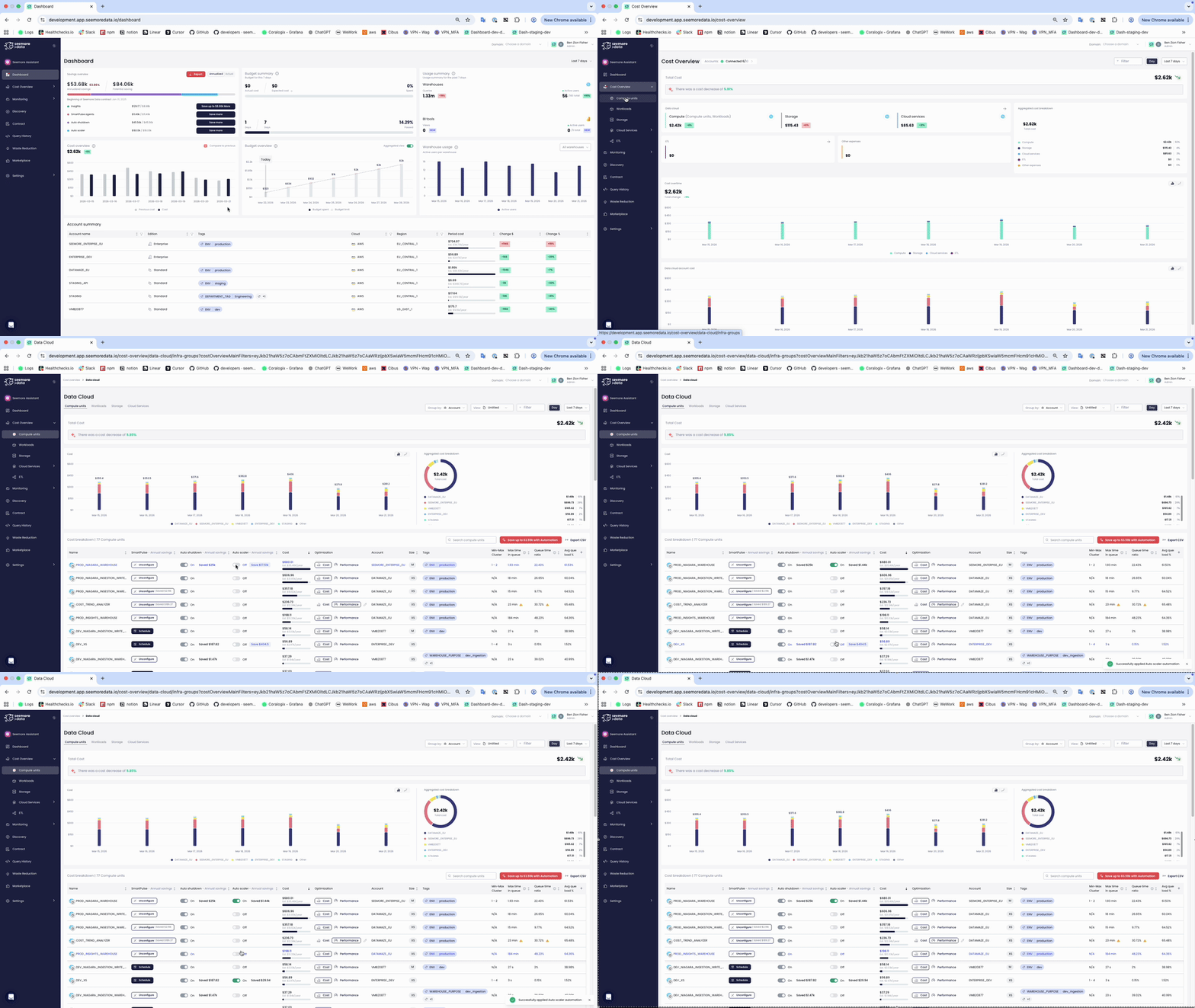
Step 1 — Open the Compute Dashboard

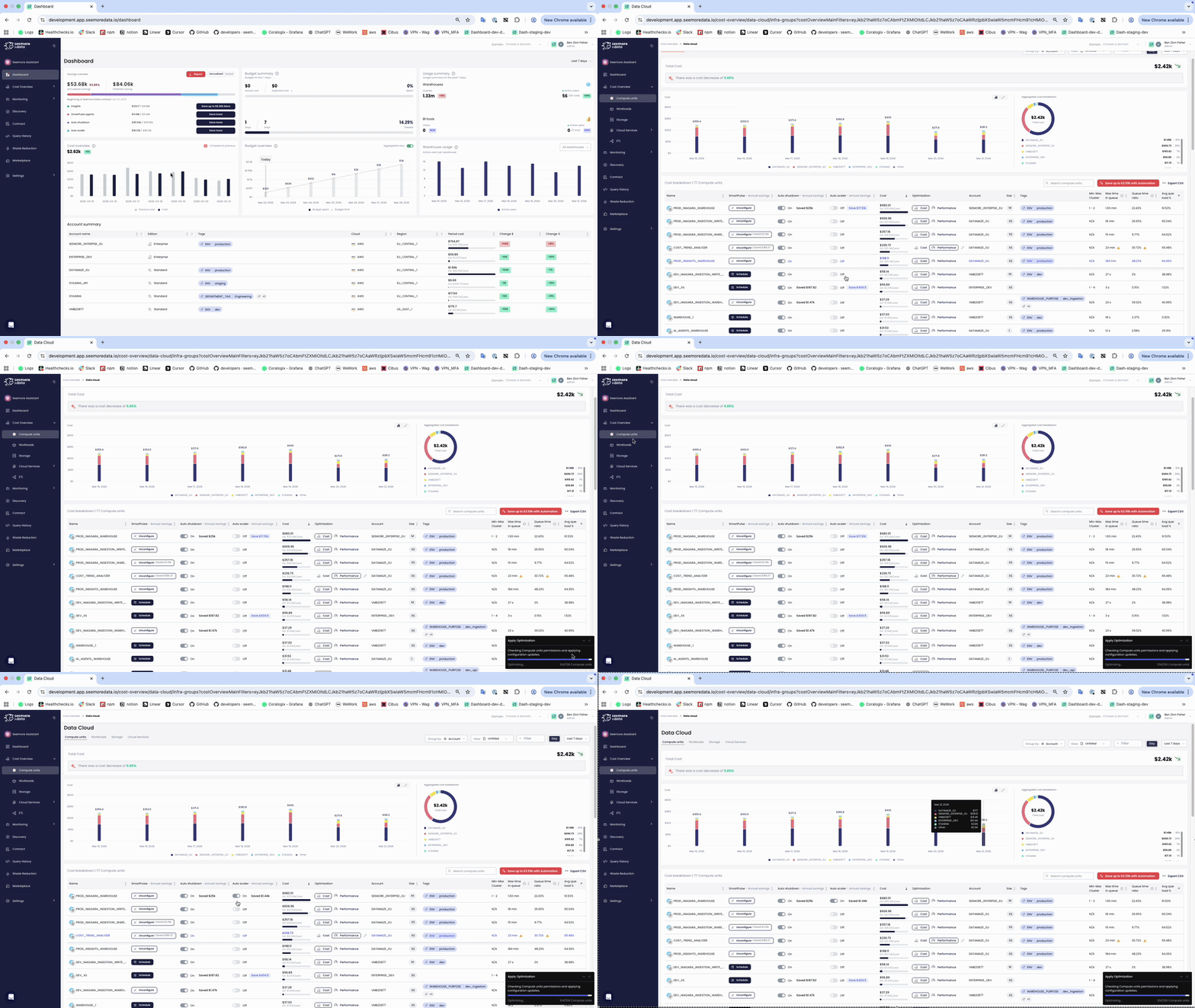
Navigate to Cost Overview → Compute. This screen lists all Snowflake warehouses along with their cost metrics and optimization options.


Step 2 — Review Total Savings

At the top of the screen, review your total potential savings, including those achievable with Auto Scaler for multi-cluster warehouses.


Step 3 — Enable Auto Scaler

You can activate Auto Scaler in two ways:

  • All warehouses — Apply Auto Scaler globally for all eligible multi-cluster warehouses per account.

  • Per warehouse — Locate the warehouse in the list and toggle Auto Scaler to ON.

Apply to all warehouses

Enable Auto Scaler for all warehouses

Apply to one warehouse

Enable Auto Scaler for a single warehouse

Step 4 — Automatic Operation

Once activated, Seemore continuously monitors each warehouse and adjusts cluster count based on load.

[!NOTE] You can return to the Compute screen anytime to track results or adjust Auto Scaler for specific warehouses.


Monitoring & Validation

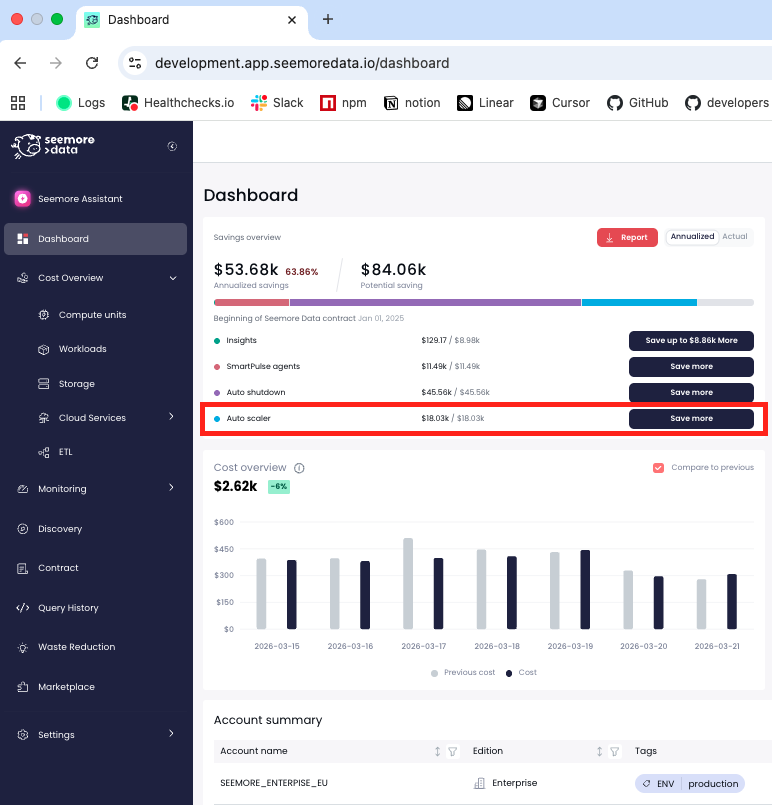
Main Dashboard — The Savings overview section shows Auto Scaler's potential savings at the account level.

Auto Scaler potential savings in the main dashboard

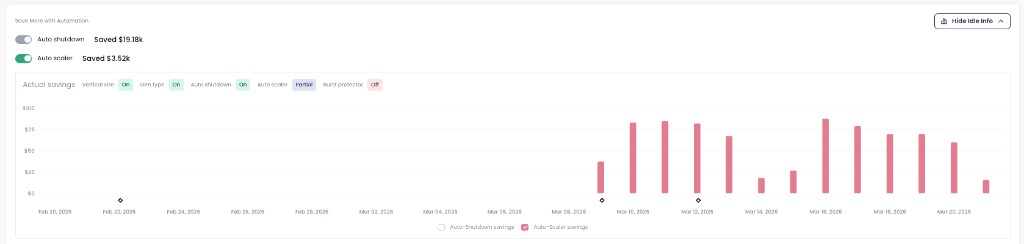
Warehouse configuration — On each warehouse page, click Show idle info to view Auto Scaler's actual savings for that warehouse.

Auto Scaler actual savings in warehouse idle info

[!TIP] Combine Auto Scaler with Auto Shutdown and Smart Pulse for maximum savings — Auto Shutdown suspends idle warehouses, Auto Scaler optimizes multi-cluster scale-in, and Smart Pulse right-sizes warehouse size and generation.


  • Multi-Cluster Idle Time — The Snowflake Efficiency Score indicator that measures idle cost on non-primary clusters and maps to Auto Scaler.

Last updated