> For the complete documentation index, see [llms.txt](https://docs.seemoredata.io/external-docs/llms.txt). Markdown versions of documentation pages are available by appending `.md` to page URLs; this page is available as [Markdown](https://docs.seemoredata.io/external-docs/fundamentals/our-features/automations/live-tuning.md).
# Live Tuning
Temporarily override a warehouse's configuration to handle high query load, with automatic revert after a set duration.
## Overview
Live Tuning lets you **temporarily tune a Snowflake warehouse** to handle high query load — a traffic spike, a backfill, a critical report run, or any short-lived event that needs more (or different) capacity than the warehouse's current configuration provides.
Unlike Smart Pulse, which is schedule-based, Live Tuning is a **manual, time-bounded override**. You pick the settings and the duration; when the timer expires, the warehouse reverts automatically:
* If Smart Pulse is active → Smart Pulse resumes its schedule.
* Otherwise → the warehouse returns to its configuration settings.
{% hint style="info" %}
**Required role to configure:** [Editor](/external-docs/fundamentals/settings/user-roles.md) or higher.
Users with lower roles can view active Live Tuning sessions but cannot start or end them.
{% endhint %}
{% hint style="info" %}
Live Tuning is non-intrusive — it never terminates active queries and is always bounded by the duration you select (5 minutes to 24 hours).
{% endhint %}
***
## Where to find it
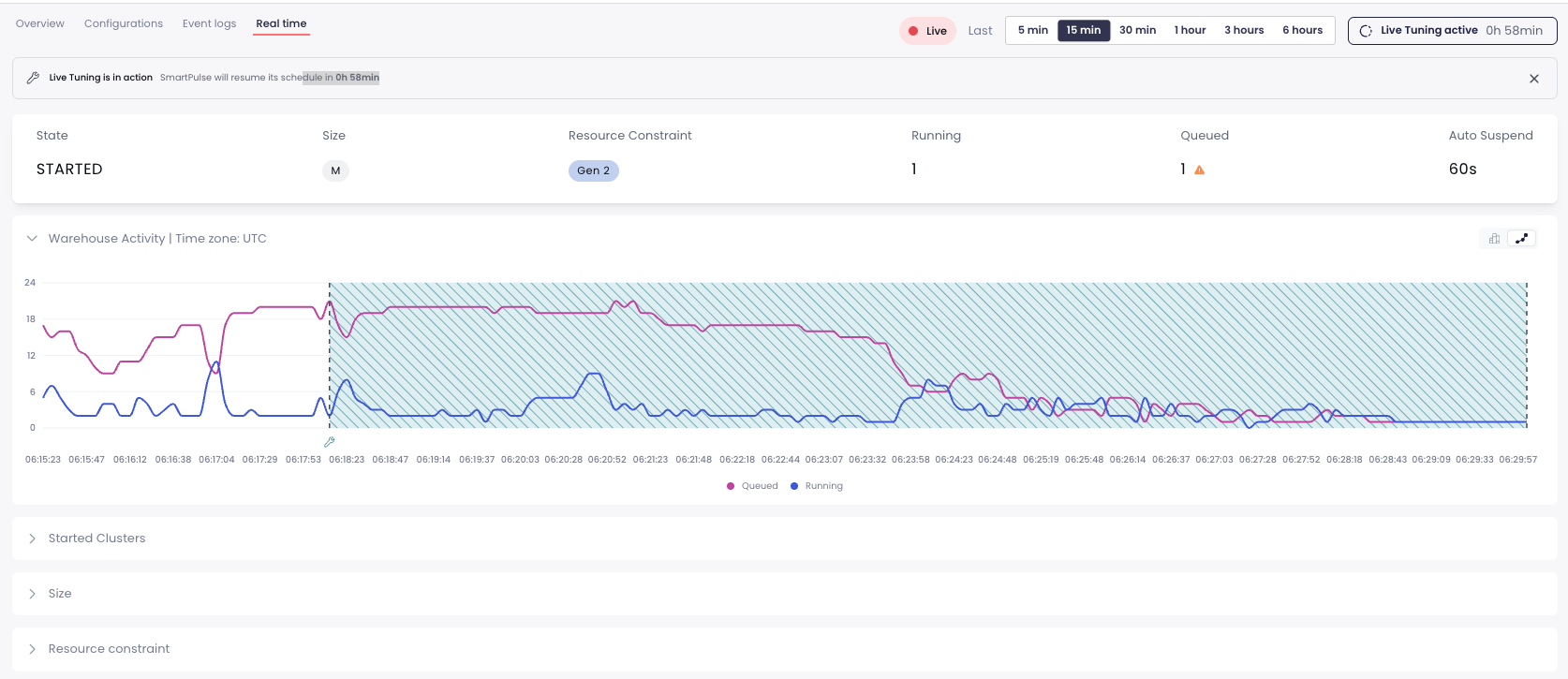
Live Tuning lives in the **Real time** tab of a compute unit's details page, right next to the real-time stats. When a session is active, a banner with a countdown appears at the top of the page.
Real time tab showing an active Live Tuning session with countdown and banner
***
## How to activate
1. Navigate to **Cost Overview → Compute** and open the warehouse you want to tune.
2. Switch to the **Real time** tab.
3. Click **Live Tuning** in the header.
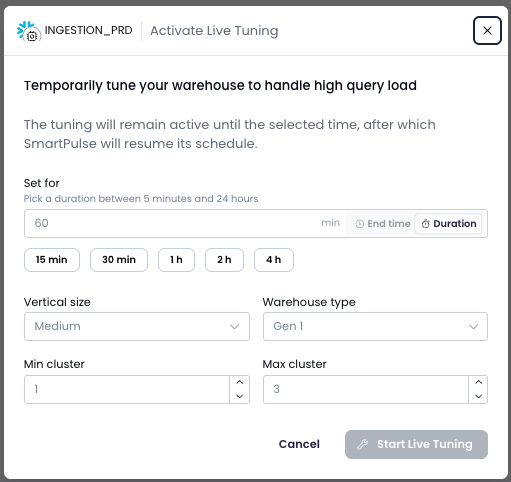
4. Fill in the activation form:
Activate Live Tuning form
### Form fields
| Field | Description |
| ------------------ | --------------------------------------------------------------------------------------------------------------------------------------------------------------------------- |
| **Set for** | How long the tuning should remain active. Switch between **Duration** (minutes, 5 min – 24 h) and **End time** (HH:MM UTC). Quick picks: 15 min / 30 min / 1 h / 2 h / 4 h. |
| **Vertical size** | Warehouse size to apply (e.g., `X-Small`, `Small`, `Medium`, `Large`, …). |
| **Warehouse type** | Resource constraint / generation (e.g., `Gen 1`, `Gen 2`). |
| **Min cluster** | Minimum cluster count (Enterprise+ multi-cluster only). |
| **Max cluster** | Maximum cluster count (Enterprise+ multi-cluster only). Must be ≥ Min cluster. |
{% hint style="info" %}
You must change **at least one** field relative to the current settings for the **Start Live Tuning** button to become available. Any field you leave untouched keeps its current value.
{% endhint %}
{% hint style="warning" %}
On **Standard edition** warehouses, the Min/Max cluster inputs are hidden — Standard is single-cluster only.
{% endhint %}
5. Click **Start Live Tuning**. Seemore applies the changes immediately and starts the countdown.
***
## While Live Tuning is active
* The header button shows **Live Tuning active** with the remaining time (e.g., `0h 58min`). Hover to reveal **Stop Live Tuning**.
* A dismissible banner at the top of the Real time tab shows the countdown and what will happen when it expires.
* You can stop the session manually at any time by clicking the header button → **Stop Live Tuning**. The warehouse reverts immediately.
***
## What happens when the timer expires
Live Tuning reverts automatically based on the warehouse's configuration:
| Smart Pulse state | On expiry / stop |
| ------------------------ | ------------------------------------------------------------ |
| **Active schedule** | Smart Pulse resumes its schedule from the current hour slot. |
| **Not configured / off** | The warehouse reverts to its saved configuration settings. |
You'll see a notification confirming the revert, and all actions are recorded in the warehouse **Event Log**.
***
## When to use Live Tuning
Live Tuning is designed for **short, predictable bursts** where you need more capacity or a different configuration for a bounded window. Common uses:
* A **one-off backfill** or heavy ETL run that needs a larger size for a few hours.
* A **critical dashboard refresh** ahead of a business meeting.
* A **launch event** where you expect a temporary traffic spike.
* **Testing a configuration change** (size, generation, cluster count) without committing to it permanently.
For recurring patterns, prefer [Smart Pulse](/external-docs/fundamentals/our-features/automations/smart-pulse.md) with an hourly schedule or a [static time slot](/external-docs/fundamentals/our-features/automations/smart-pulse.md#manual-editing-static-time-slots). For sudden, unplanned spikes while Smart Pulse is active, [Burst Protector](/external-docs/fundamentals/our-features/automations/smart-pulse/burst-protector.md) handles them automatically.
***
## Prerequisites
Live Tuning requires the `MANAGE WAREHOUSES` privilege on the Snowflake user Seemore uses. If you haven't already granted it during initial setup, run:
```sql
GRANT MANAGE WAREHOUSES ON ACCOUNT TO ROLE seemore_user_role;
```
For full setup instructions, see [Create Snowflake User and Privileges](/external-docs/fundamentals/getting-set-up/setting-integrations/snowflake/create-snowflake-user-and-privileges.md).
***
## FAQ
#### What happens if I close the browser tab?
Nothing — the session runs server-side. The warehouse stays tuned until the duration expires or you stop it manually from any device.
#### Can I extend an active session?
Not directly. Stop the current session and start a new one with the desired duration.
#### Does Live Tuning interfere with Smart Pulse?
While Live Tuning is active, Smart Pulse's schedule is paused for that warehouse. When Live Tuning ends, Smart Pulse picks up from the current hour slot as if nothing happened.
#### Can I use Live Tuning on any warehouse?
Yes, on any warehouse Seemore manages. The available settings depend on your Snowflake edition — multi-cluster options are only shown on Enterprise edition and above.
#### What's the longest session I can run?
24 hours. For longer overrides, use a [Smart Pulse static time slot](/external-docs/fundamentals/our-features/automations/smart-pulse.md#manual-editing-static-time-slots) instead.