> For the complete documentation index, see [llms.txt](https://docs.seemoredata.io/external-docs/llms.txt). Markdown versions of documentation pages are available by appending `.md` to page URLs; this page is available as [Markdown](https://docs.seemoredata.io/external-docs/fundamentals/our-features/automations/smart-pulse.md).
# Smart Pulse
Our automatic configuration scheduler, the best way to optimize your warehouse configuration dynamically.
## Overview
Smart Pulse automatically optimizes your Snowflake warehouses by generating an **hourly configuration schedule** based on recent workload patterns.\
It helps you reduce warehouse spend while maintaining expected performance.
{% hint style="info" %}
**Required role to configure:** [Editor](/external-docs/fundamentals/settings/user-roles.md) or higher.
Users with lower roles can view Smart Pulse schedules but cannot enable, disable, or modify them.
{% endhint %}
***
## Why use Smart Pulse?
Most warehouses are sized for peak load and then left oversized during off-peak hours. Smart Pulse reduces wasted credits by:
* Right-sizing **by hour**, not “one setting for the whole day”
* Optimizing across **warehouse size** and (optionally) **warehouse generation**
* Applying changes automatically on schedule
* Enforcing guardrails through **Predictability**, **SLO preferences**, and **Burst Protector**
***
## What Smart Pulse changes
Smart Pulse can manage one or both of these dimensions:
* **Size (Vertical optimization):** e.g., Large → Medium during off-peak hours
* **Generation (Gen optimization):** e.g., GEN\_1 ↔ GEN\_2 when it’s beneficial for your workload
You can enable these independently per warehouse.
***
## When Smart Pulse works best
### Best fit - **predictable WH**
Smart Pulse is most effective when your warehouse has **repeatable patterns**, such as:
* Scheduled ETL/ELT pipelines
* dbt jobs / Dynamic Tables refresh windows
* Orchestrated workloads (e.g., Airflow)
In these cases Smart Pulse will generate a custom schedule that fits the warehouse load.
### Less effective - **unpredictable WH**
When warehouses are unpredictable, you would be able to schedule them manually according to your request, for example if you wish to give more power during working hours and at night reduce the size of the warehouses.\
Smart Pulse may be less impactful when:
* Workload is highly ad-hoc and unpredictable
* Usage varies dramatically day-to-day without stable patterns
***
## How Smart Pulse works (high level)
Smart Pulse analyzes recent warehouse activity and identifies the typical “shape” of demand across days and hours. It then builds an **hourly schedule** that aims to:
* Reduce credits during low utilization
* Keep capacity during known peak windows
* Avoid risky changes during unpredictable hours
The output is a weekly schedule (7 days × 24 hours) you can review and apply.
***
## Prerequisites
Smart Pulse requires the `MANAGE WAREHOUSES` privilege. If you haven't already granted it during initial setup, run:
```sql
GRANT MANAGE WAREHOUSES ON ACCOUNT TO ROLE seemore_user_role;
```
For full setup instructions, see [Create Snowflake User and Privileges](/external-docs/fundamentals/getting-set-up/setting-integrations/snowflake/create-snowflake-user-and-privileges.md).
***
## How to use Smart Pulse
### 1) Generate a schedule
1. Go to **Cost Overview -> compute unit**
2. Select the warehouse you wish to configure
3. In the Smart Pulse field you will find:
1. predictable warehouses marked with **Generate** button
2. non-predictable warehouses marked with **schedule**
4. Click **Generate schedule** or **schedule** to get into the Smart Pulse configuration page
You’ll see:
* A calendar-style schedule (hourly)
* Expected savings
* Expected performance impact
### 2) Review and apply
In the **Apply Schedule** flow, review:
* Size and/or Gen changes per hour
* Estimated savings (annualized)
* Performance expectations
Click **Apply Schedule** to activate the schedule. (red button at the bottom left corner)
### 3) Disable anytime
You can disable Smart Pulse for a warehouse at any time,\
by clicking Unconfigure in the Smart Pulse configuration page.\
When disabled, the warehouse returns to its previous configuration.
***
## Manual editing (Static time slots)
Smart Pulse recommendations are a starting point. You can override specific hours to match business needs (e.g., keep BI hours larger even if the recommendation downsizes).
### Add a static time slot
1. Open **Apply Schedule**
2. Click **Add static time slot**
3. Choose:
* Day(s) of week
* Time range (start hour → end hour , 24h clock from 0 to 24)
* Warehouse size
* Optional: warehouse generation (GEN\_1 / GEN\_2)
### Edit or delete a slot
* Click an existing calendar block to edit or delete it.
* Manual blocks are visually distinct from Smart Pulse recommended blocks.
### Clear all manual edits
Use **Clear static time slots** to remove overrides and revert back to Smart Pulse recommendations.
#### Regenerate recommendations without losing overrides
If you regenerate suggestions, Smart Pulse updates the **recommended plan** while keeping your manual overrides in place (manual edits take precedence in overlapping hours).
***
## Guardrails and safety
### Predictability
Smart Pulse uses predictability checks to avoid applying aggressive optimization in hours that don’t follow stable patterns. Unpredictable hours typically remain closer to the current configuration.
### SLO preferences (Performance guardrails)
By default cost is the highest priority seemore takes into consideration, you can configure **performance** preferences to be in priority so Smart Pulse avoids changes that are likely to violate your expected runtime/latency. In practice, this means:
* Some hours may revert to safer settings
* Savings may decrease in exchange for greater performance stability
### Burst Protector
Burst Protector is a safety mechanism that temporarily adds warehouse capacity when sustained query bursts are detected, ensuring cost optimization never comes at the expense of performance. It runs with every applied Smart Pulse schedule, in either a **Cost** mode (never exceeding your original cost) or a **Performance** mode (scaling above your configuration up to a ceiling you set).
-> [Learn more about Burst Protector](/external-docs/fundamentals/our-features/automations/smart-pulse/burst-protector.md)
***
## Monitoring & Validation
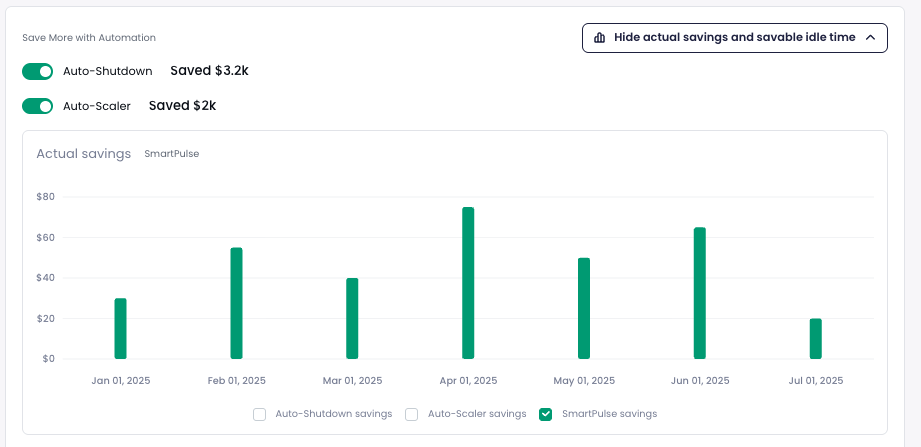
* **Actual Savings graph** — Found in the warehouse configuration section under **Save More with Automation**. Click **Show actual savings and savable idle time** to reveal a bar chart showing realized dollar savings over time, broken down by automation type (Auto-Shutdown, Auto-Scaler, SmartPulse).
Savings are calculated by comparing current warehouse costs against a **baseline** captured from the week before Smart Pulse was activated. Each hour is matched to the same weekday and hour slot from the baseline, so the comparison reflects what the warehouse *would have cost* without optimization.
* **Warehouse Cost Overview** — Includes an **Event Log** that records every configuration change made by Smart Pulse for full visibility.
***
## FAQ
#### Will Smart Pulse affect my users during business hours?
It can, which is why you review the schedule before applying and can create static time slots to protect business-critical hours.
#### Does Smart Pulse automatically switch GEN\_1 / GEN\_2?
Only if **Gen optimization** is enabled for that warehouse. Otherwise, it will only adjust size.
#### What happens if our workload changes?
Regenerate the schedule. Smart Pulse will adapt recommendations based on the new pattern, while preserving your manual overrides.

 4. Click **Generate schedule** or **schedule** to get into the Smart Pulse configuration page
You’ll see:
* A calendar-style schedule (hourly)
* Expected savings
* Expected performance impact
4. Click **Generate schedule** or **schedule** to get into the Smart Pulse configuration page
You’ll see:
* A calendar-style schedule (hourly)
* Expected savings
* Expected performance impact