> For the complete documentation index, see [llms.txt](https://docs.seemoredata.io/external-docs/llms.txt). Markdown versions of documentation pages are available by appending `.md` to page URLs; this page is available as [Markdown](https://docs.seemoredata.io/external-docs/fundamentals/our-features/observability/contract-view.md).
# Contract View
Track your Snowflake contract spend, consumption trends, and savings.
The **Contract Utilization** page provides a comprehensive view of your Snowflake contract spend, consumption trends, and savings. Use it to track how your purchased capacity is being used, forecast when credits may run out, and understand how SeeMore Data automations are saving you money.
{% hint style="info" %}
**Required role to configure contracts:** [Editor](/external-docs/fundamentals/settings/user-roles.md) or higher.
Users with lower roles can view the Contract Utilization page but cannot create, edit, or delete contracts.
{% endhint %}
## Accessing the Page
Navigate to **Contract Utilization** from the main navigation. Access requires the appropriate permissions; users without contract page access are redirected to the Dashboard.
## Page Layout
The page is divided into four sections:
1. **Header & Controls** — contract selector, granularity toggle, and year selector
2. **Metric Cards** — key contract KPIs at a glance
3. **Meeting Snowflake Budget** — cumulative balance chart and savings overview
4. **Consumption and Savings** — detailed breakdown charts
## Header & Controls
### Contract Selector
If your organization has multiple Snowflake contracts (current, past, or upcoming), use the **Contract** dropdown in the top-right corner to switch between them. Each option shows the contract number, its status, and date range.
### Contract Status Badge
A color-coded badge next to the page title indicates the contract's current state:
| Status | Meaning |
| ------------ | ------------------------------------------------------------------------------------------ |
| **Active** | Contract is currently in effect and credits remain |
| **Overage** | Contract is active but credits have been fully consumed — usage now incurs overage charges |
| **Upcoming** | Contract start date is in the future |
| **Ended** | Contract period has concluded |
### Year Selector
For multi-year contracts, use the year selector to view one or more individual contract years. Selecting multiple years shows their combined capacity and consumption.
## Metric Cards
Four summary cards are displayed beneath the header:
Contract summary metric cards
{% tabs %}
{% tab title="End of Contract" %}
The contract end date, with a hint showing the full start-to-end range.
{% endtab %}
{% tab title="Capacity Purchased" %}
Total credit capacity for the selected contract or years. For multi-year contracts the hint shows per-year or combined capacity.
{% endtab %}
{% tab title="Total Capacity Used" %}
Credits consumed so far, with remaining credits and percentage shown as a hint.
{% endtab %}
{% tab title="Credits Runout Projection" %}
A forward-looking estimate of when credits will be exhausted.
* Shows **"On track"** (green) when no overage is expected.
* Shows a **projected overage date** with days-early warning and estimated overage amount (amber) when credits are expected to run out before the contract ends.
* For ended contracts, reflects whether credits lasted through the end.
{% endtab %}
{% endtabs %}
## Meeting Snowflake Budget
This section contains two side-by-side panels.
### Cumulative Balanced Source Over Time
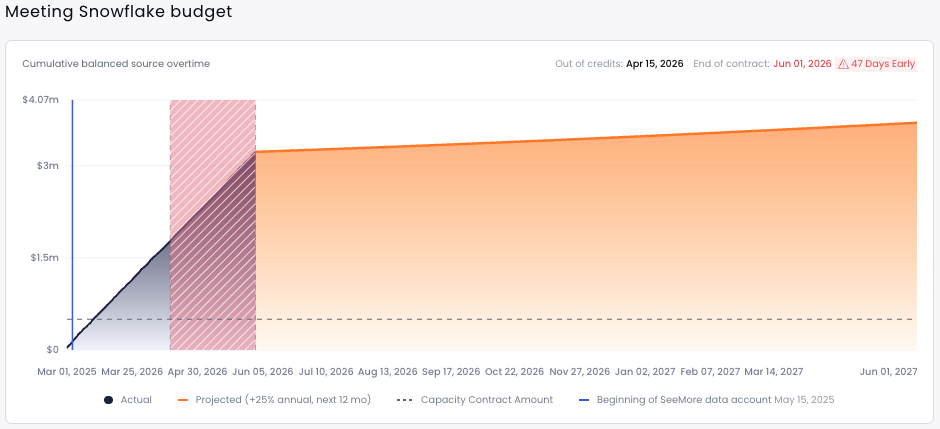
A time-series chart showing how your credit balance accumulates over the contract period.
Cumulative balanced source over time
**Chart legend:**
* **Actual** — Cumulative credits consumed to date
* **Projected** — Forward projection based on +25% annual growth over the next 12 months
* **Capacity Contract Amount** — Total purchased capacity (horizontal reference line)
* **Beginning of SeeMore Data account** — Marks when SeeMore Data integration began
{% hint style="info" %}
If the projection indicates credits will run out before the contract ends, a hatched **overage area** highlights the gap between the projected overage date and the contract end date.
{% endhint %}
### Savings Overview
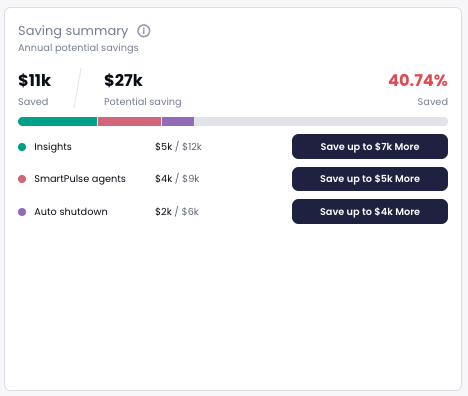
A summary card showing how much SeeMore Data is saving you.
Savings summary
* **Saved / Annualized Savings** — total estimated or annualized savings from SeeMore Data automations
* **Potential Saving** — additional savings available if all recommended automations are enabled
* **Progress bar** — visual breakdown of savings by automation type (Auto Suspend, Auto Scaler, etc.)
* **Breakdown rows** — per-automation saved vs. potential amounts, each with a link to take action
When annualized savings are available, a toggle lets you switch between:
| View | What it shows |
| -------------- | ----------------------------------------------------------------------------------------------------------- |
| **Annualized** | Run-rate savings extrapolated to a full year based on actual savings observed since the contract start date |
| **Actual** | The raw estimated savings amount |
{% hint style="success" %}
A **Report** button (when available) links to the Settings page where you can configure automated savings reports.
{% endhint %}
### How Annualized Savings Is Calculated
The **Annualized Savings** figure projects the savings SeeMore Data has already delivered out to a full year, giving you a reliable run-rate estimate of yearly impact long before a full year of data exists.
#### The observation window
Savings are measured from an **observation start date** — the later of your contract (or POC) start date and the date SeeMore Data began tracking annualized savings for your account. Anything before that baseline is excluded, so the projection always reflects the period SeeMore Data has actively been managing your environment.
#### How the projection works
At its core, annualization takes the savings observed so far and scales them up to a full year:
```
Annualized = (Savings observed in the window ÷ Days in the window) × 365
```
SeeMore Data applies this per capability, using the most accurate "days" base for each:
* **Automations** (Auto Shutdown, Auto Scaler, Smart Pulse) are projected **per warehouse**, based on the number of days each warehouse actually had the automation switched **on**. A warehouse that ran an automation for only part of the period is scaled from its own active days, and the results for all warehouses are then summed. (Smart Pulse can run in more than one mode; days it was active in multiple modes are counted once.) This keeps the projection fair when automations are enabled gradually across your warehouses.
* **Waste-reduction insights** (resolved recommendations such as orphan tables or unused data flows) are projected on a calendar basis, extrapolating the savings rate observed since the observation start across your full contract length.
The **Annualized Savings** shown in the Savings Overview is the sum of all of these.
#### Safeguards
* The projection never extrapolates beyond a single year. Once an automation has been active for a full year or more, its savings are reported as observed rather than inflated.
* Savings are never reported as a negative amount.
{% hint style="info" %}
A longer observation window produces a more stable estimate. In the first days after setup, the annualized figure may fluctuate as more data is collected.
{% endhint %}
#### Ended contracts
Once a contract has ended, the Annualized Savings value switches to the **actual total saved** over the life of that contract — there is no forward projection for a period that is already complete. This is the same number shown by the **Actual** view of the toggle.
#### Worked example
Suppose Auto Shutdown was enabled on a warehouse for 90 days since your contract start and saved **$25,000** in that time. Its annualized contribution is:
```
($25,000 ÷ 90) × 365 ≈ $101,400 per year
```
The same calculation runs for every automation and warehouse, and the results are added together to produce the figure in the Savings Overview.
## Consumption and Savings
### Consumption Over Time by Account
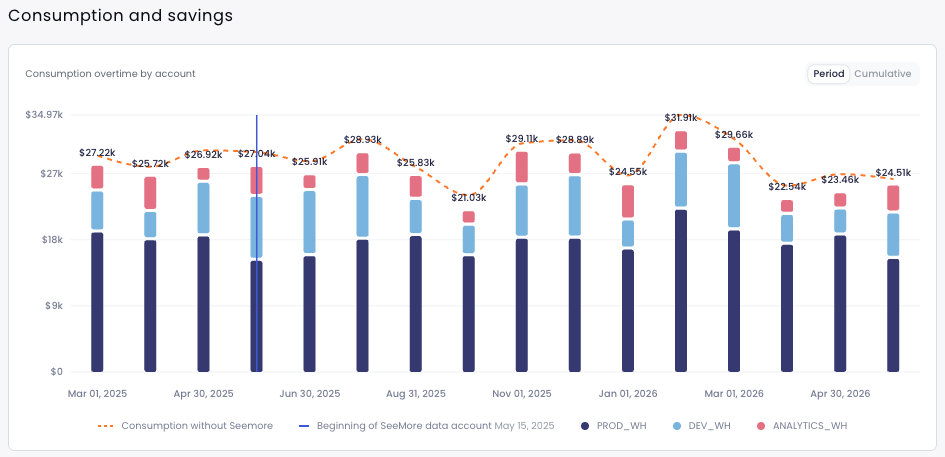
A stacked bar chart showing credit consumption broken down by Snowflake account over time. A toggle switches between **Period** (per-bucket) and **Cumulative** views.
Consumption over time by account
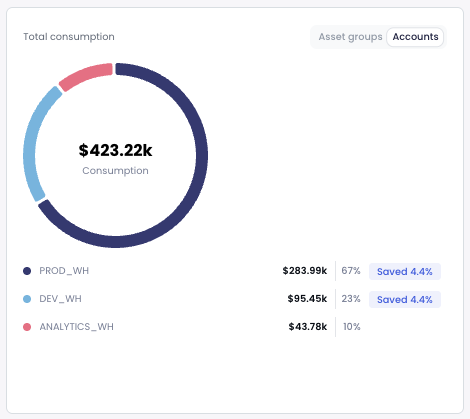
A companion **pie chart** on the right shows total consumption distribution and can toggle between **Accounts** and **Asset Groups** views, with per-slice savings percentages.
Total consumption breakdown by account
{% hint style="info" %}
Clicking an account bar navigates to the **Cost Overview** page filtered to that account.
{% endhint %}
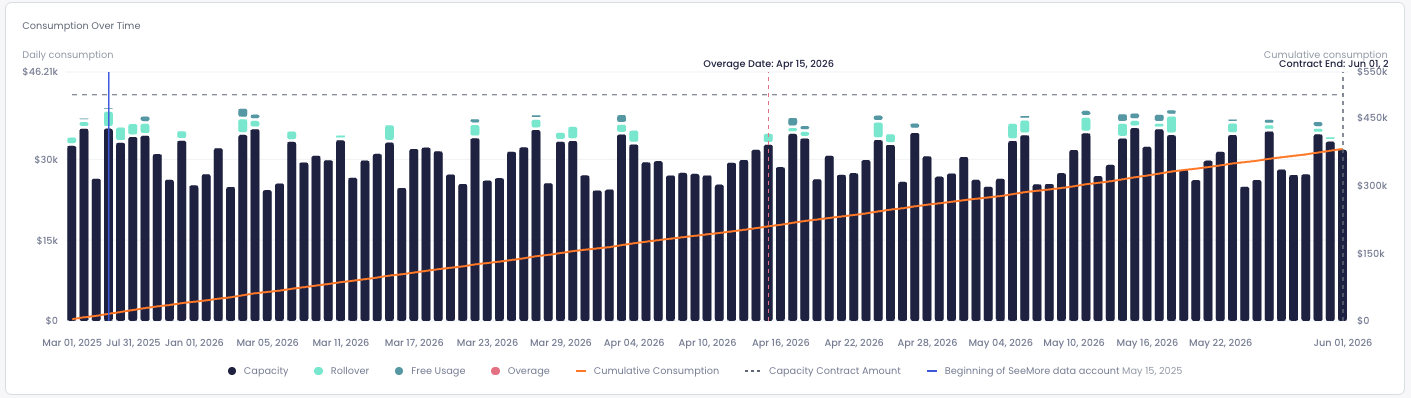
### Consumption Over Time
A dual-axis chart providing a granular view of credit types consumed each period:
Consumption over time
| Series | Description |
| ---------------------------- | ---------------------------------------------- |
| **Capacity** | Standard capacity credits consumed |
| **Rollover** | Rolled-over credits from a previous period |
| **Free Usage** | Credits consumed under a free-usage allocation |
| **Overage** | Credits consumed beyond the purchased capacity |
| **Cumulative Consumption** | Running total of all consumption |
| **Capacity Contract Amount** | Total purchased capacity reference line |
Reference lines mark the **contract end date** and, if applicable, the **projected overage date**.
## Reseller Contracts
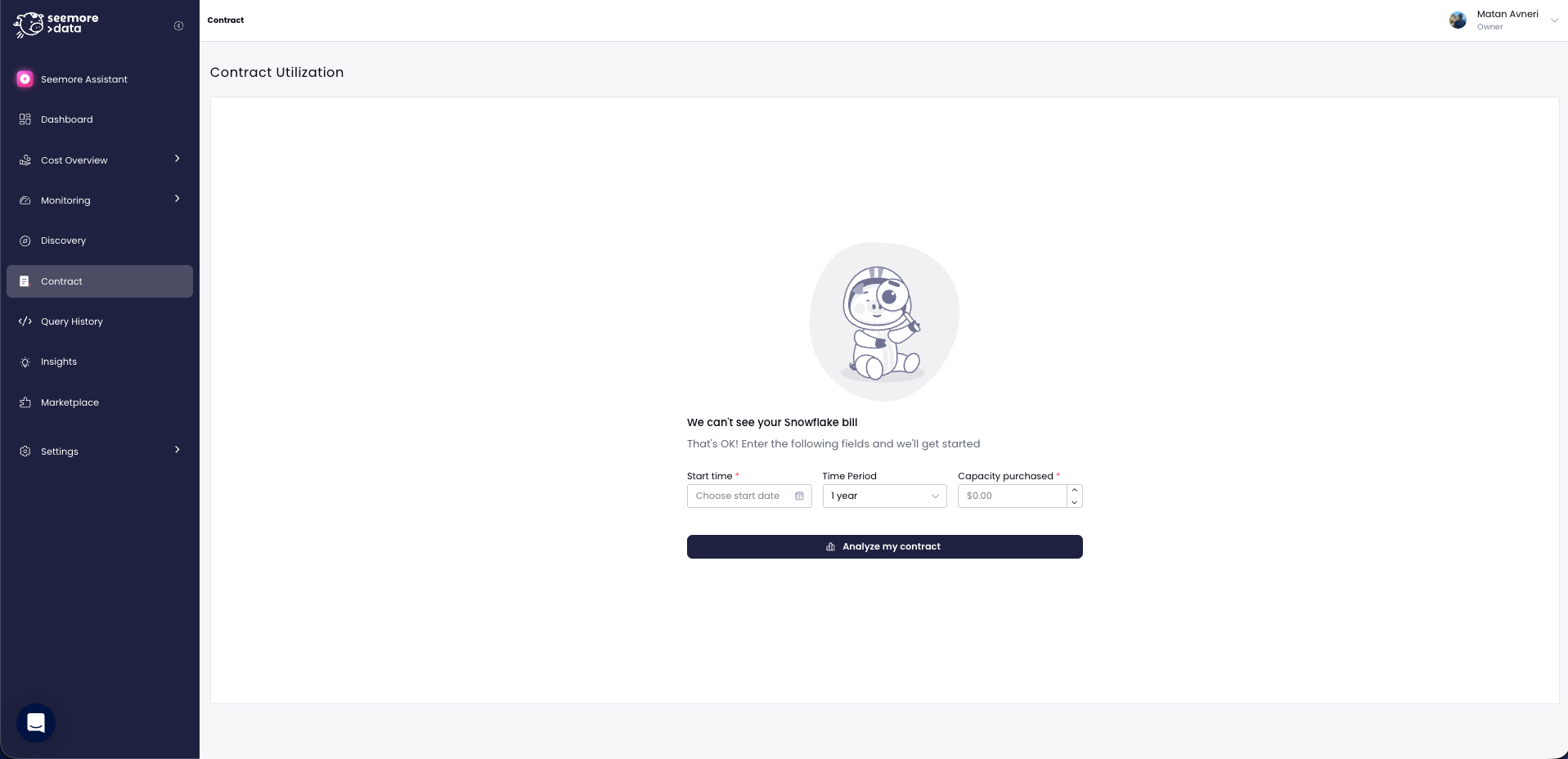
If your organization purchased Snowflake through a reseller, SeeMore Data cannot access your Snowflake billing contract directly. Instead of the standard dashboard, you will see a prompt to enter your contract details manually.
Reseller contract entry form
### Entering Your Contract
Provide the following information to get started:
| Field | Description |
| ---------------------- | ------------------------------------------------------------ |
| **Start time** | The contract start date |
| **Time Period** | Duration in years (1–10); the end date is calculated from it |
| **Capacity purchased** | Total credit capacity purchased (in dollars) |
Once you submit, the page transitions to the full Contract Utilization dashboard described above, using the details you provided.
{% hint style="info" %}
After a reseller contract is created, the same charts, metric cards, and consumption views are available. You can update or add additional contracts at any time.
{% endhint %}
## Key Concepts
{% hint style="warning" %}
**Overage** occurs when total consumption exceeds the purchased capacity. Overage credits are billed at a higher rate and are visually highlighted in charts.
{% endhint %}
### SeeMore Data Contract Date
The "Beginning of SeeMore Data account" reference line on charts marks when SeeMore Data started managing your Snowflake environment. Consumption before this date represents pre-optimization spend; consumption after reflects the impact of automations.
### Multi-Year Contracts
Multi-year contracts are displayed as a single group with individual year breakdowns. You can select specific years to view their isolated capacity and consumption, or select all years for a combined view.
## FAQ
Why is the Credits Runout Projection showing "N/A"?
There is not enough consumption data to produce a reliable projection. This typically resolves after a few days of data collection.
Why don't I see a "Projected" line on the cumulative chart?
The projection line appears only when there is sufficient historical data and the contract is currently active.
What does "Save up to $X More" mean in the Savings Overview?
This is the estimated additional annual savings you could achieve by enabling the recommended automation for compute units that are not yet optimized.