> For the complete documentation index, see [llms.txt](https://docs.seemoredata.io/external-docs/llms.txt). Markdown versions of documentation pages are available by appending `.md` to page URLs; this page is available as [Markdown](https://docs.seemoredata.io/external-docs/fundamentals/our-features/observability/views.md).
# Views
Save and reuse filter configurations across screens for faster, repeatable analysis.
## Overview
Views are saved filter configurations that let you persist and reuse specific filter combinations across different screens in Seemore. Each view stores:
* A **name**, **icon**, and **color** for easy identification
* A complete **filters snapshot** of the screen at the time it was saved
* A **visibility setting** — either **Private** (visible only to you) or **Public** (visible to all users in your account)
When you select a view, its stored filters are applied to the screen automatically, restoring the exact state they were saved in.
{% hint style="info" %}
**Required role:** [Viewer](/external-docs/fundamentals/settings/user-roles.md) or higher.
Any authenticated user can create, edit, and delete their own views.
{% endhint %}
***
## View selector
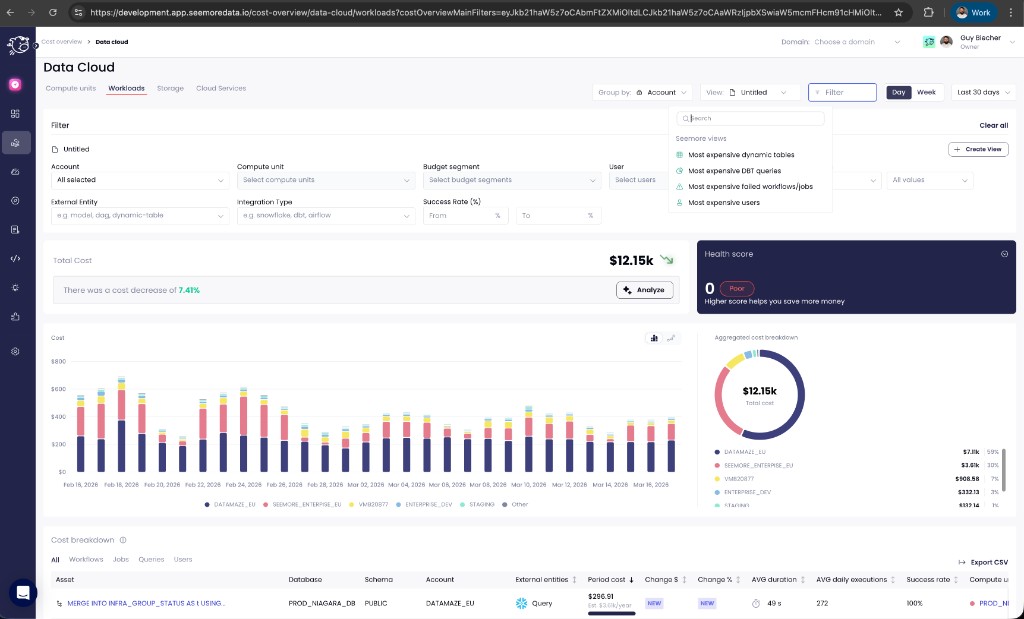
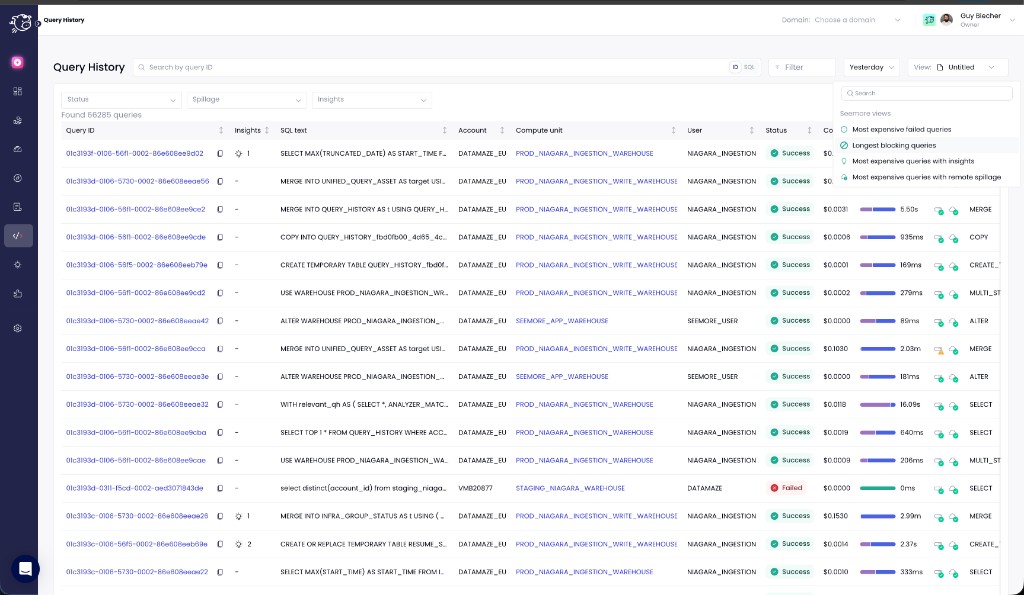
The view selector is a dropdown available on supported screens. It groups views into three sections:
1. **Favorites** — your starred views for quick access
2. **Seemore views** — built-in presets curated by Seemore (see below)
3. **All views** — the remaining user-created views
Selecting any view immediately applies its filters to the screen.
View selector on the Data Cloud Workloads screen
View selector on the Query History screen
***
## User views
User views are created by you through the filter drawer. They are persisted across sessions and available on any device you log in from.
### What you can do
| Action | Description |
| ------------------ | ------------------------------------------------------------------- |
| **Create** | Save the current filter state as a new view |
| **Edit** | Update a view's name, icon, color, or visibility |
| **Delete** | Remove a view you own |
| **Favorite** | Star a view so it appears in the Favorites section for quick access |
| **Set as default** | Choose a view that loads automatically when you open the screen |
| **Duplicate** | Copy an existing view as a starting point for a new one |
### Visibility
* **Private** — only you can see and use the view.
* **Public** — all users in your account can see and use the view. Only the view's owner (or an account admin) can edit or delete it.
***
## Seemore views
Seemore views are built-in, read-only presets available on specific screens. They act as curated shortcuts to common analysis patterns, helping you surface insights without needing to configure filters manually.
Seemore views cannot be edited, deleted, or favorited. They are always available in the **Seemore views** section of the view selector.
### Query History
| View | What it shows |
| ----------------------------------------------- | ----------------------------------------------------------- |
| **Most expensive failed queries** | Failed queries, sorted by cost |
| **Longest blocking queries** | Queries with blocking time, sorted by blocked duration |
| **Most expensive queries with insights** | Queries that have Seemore insights attached, sorted by cost |
| **Most expensive queries with remote spillage** | Queries with remote spillage, sorted by cost |
### Data Cloud — Workloads
| View | What it shows |
| ------------------------------------------------------------- | --------------------------------------------------------------------------------------------------------------------------------- |
| **Most expensive dynamic tables** | Filters to dynamic tables (visible when your account uses them) |
| **Most expensive failed workflows/jobs** | Workflows and jobs with low success rates |
| **Most expensive users** | Cost breakdown by user |
| **Most expensive Airflow DAGs** | Airflow DAG costs (visible when an Airflow integration is connected) |
| **Most expensive *****\[integration]***** queries** | Auto-generated per connected integration (e.g. DBT, Tableau, Fivetran) — filters to queries from that integration, sorted by cost |
{% hint style="info" %}
Some Seemore views appear only when the relevant integration or asset type exists in your account. For example, "Most expensive Airflow DAGs" is only visible if you have an Airflow or Astronomer integration connected.
{% endhint %}
***
## Supported screens
Views are currently available on:
* **Query History**
* **Data Cloud** (Compute Units, Workloads, Storage, Cloud Services)
***
## FAQ
#### Can I share a view with my team?
Yes. When creating or editing a view, set its visibility to **Public**. All users in your account will see it in the view selector.
#### What happens if I set a default view?
The default view's filters are applied automatically every time you open that screen. You can change or remove the default at any time.
#### Can I modify a Seemore view?
No. Seemore views are read-only presets. If you want to start from a Seemore view and customize it, use the **Duplicate** action on any user view with similar filters, or apply the Seemore view and then save your modified filters as a new user view.