> For the complete documentation index, see [llms.txt](https://docs.seemoredata.io/external-docs/llms.txt). Markdown versions of documentation pages are available by appending `.md` to page URLs; this page is available as [Markdown](https://docs.seemoredata.io/external-docs/fundamentals/our-features/real-time-monitoring/real-time-alerts.md).
# Real Time Alerts
Get notified the moment a warehouse starts queueing, runs hot, or pins at its max cluster count — with rules you scope, threshold, and route yourself.
## Overview
**Real Time Alerts** watch your warehouses as they run and notify you when one starts to misbehave — queries piling up in the queue, a runaway queue-to-running ratio, or a multi-cluster warehouse stuck at its ceiling. Unlike [Anomaly Detection](/external-docs/fundamentals/our-features/monitoring-cost-management/anomalies-detection.md), which looks at daily cost patterns, Real Time Alerts react to **live load**, within minutes.
You manage them on the **Alerts** tab of the [Real Time Monitoring](/external-docs/fundamentals/our-features/real-time-monitoring.md) screen (**Monitoring → Real Time → Alerts**).
{% hint style="info" %}
**Required role:** [Admin](/external-docs/fundamentals/settings/user-roles.md) or higher to create, edit, or delete rules. Anyone can view existing rules and their status.
{% endhint %}
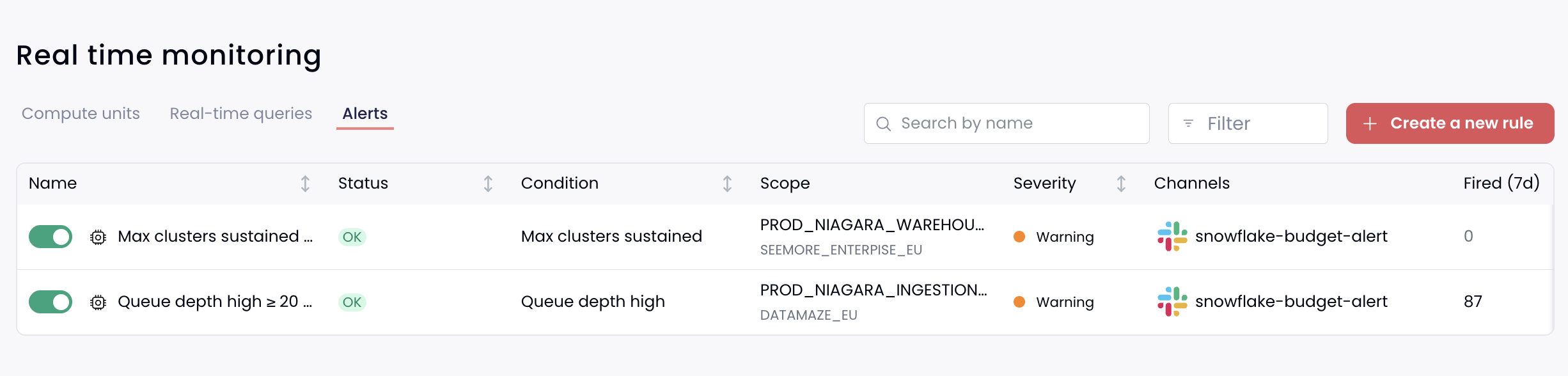
The Alerts tab listing all real-time alert rules and their current status
***
## The alerts table
Every rule appears as a row you can sort, search (by name), and filter (by status). Each row shows:
| Column | What it tells you |
| --------------------------- | ------------------------------------------------------------------------------------------------------------------------------------------------------------------------------------------------- |
| **Name** | The rule name, with a toggle to enable or disable it. |
| **Status** | **OK** (active, nothing wrong), **Firing** (condition currently met — shows a count if more than one warehouse is firing), or **Disabled**. Hover a firing rule to see how long it's been firing. |
| **Condition** | What the rule watches: Queue depth high, Queue / running ratio high, or Max clusters sustained. |
| **Scope** | Which warehouses it covers — specific warehouses, a whole account, or all warehouses. |
| **Severity** | Critical, Warning, or Info. |
| **Channels** | Where notifications are sent (Slack, Email, Microsoft Teams). |
| **Fired (7d)** | How many times the rule fired in the last 7 days. |
| **Last fired** | When it most recently fired (or **Never**). |
| **Created at / Created by** | When the rule was created and by whom. |
Each row also has **Edit**, **Duplicate**, and **Delete** actions. Duplicate is handy for building a family of similar rules across different warehouses.
***
## Creating a rule
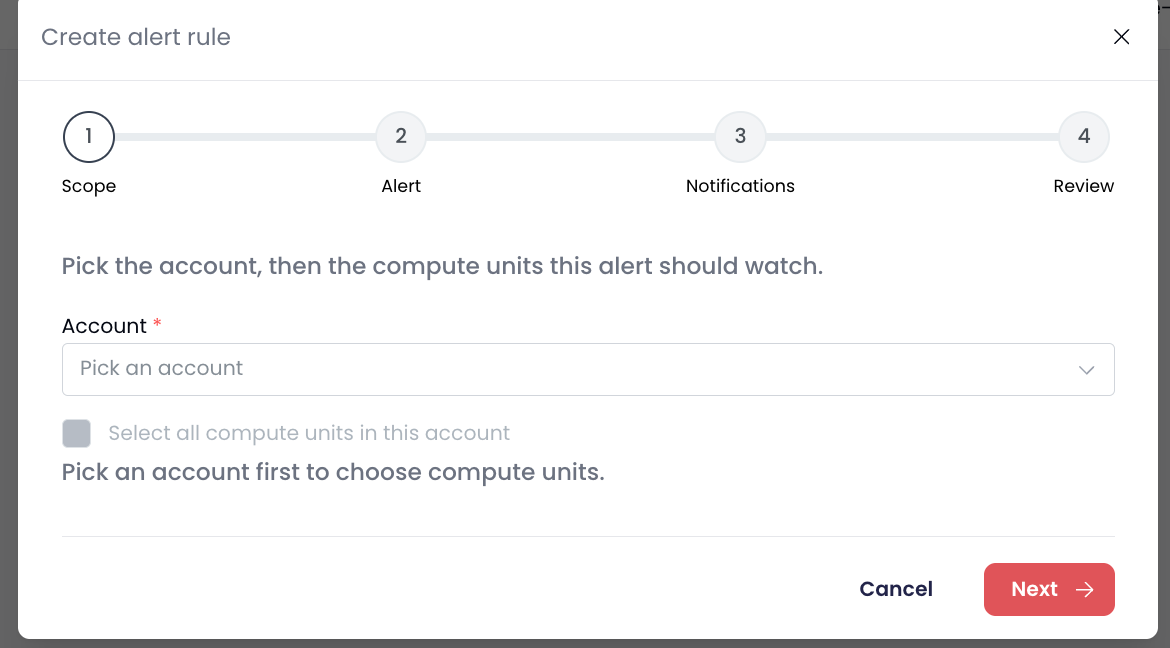
Click **Create a new rule** (or the **bell** icon on any warehouse tile to pre-scope the rule to that warehouse). The builder walks through four steps.
The four-step alert rule builder
{% stepper %}
{% step %}
#### Scope
Choose the **account**, then either **all warehouses in the account** or a specific set of warehouses to watch.
{% endstep %}
{% step %}
#### Alert
Pick what to watch for and set the threshold:
| Condition | Fires when… |
| ------------------------------ | ------------------------------------------------------------------------------------------- |
| **Queue depth high** | Queued queries stay **≥ your threshold** for a sustained window. |
| **Queue / running ratio high** | The queued-to-running ratio stays **≥ your threshold** for a sustained window. |
| **Max clusters sustained** | A multi-cluster warehouse runs at its **max cluster count** for the whole sustained window. |
You also set:
* **Threshold** — the queue count or ratio that trips the alert (not needed for *Max clusters sustained*).
* **For at least** — the **sustain window** the condition must hold before firing: 1, 2, 5, 10, 15, or 30 minutes. This prevents momentary blips from firing an alert.
* **Severity** — Info, Warning, or Critical (a label to help you triage).
* **Name** — auto-generated from the scope and condition; edit it if you prefer your own.
{% endstep %}
{% step %}
#### Notifications
* **Notify channels** — choose one or more channels. These come from your configured [Communication Channels](/external-docs/fundamentals/settings/communication-channels.md) (Slack, Email, Microsoft Teams) under **Settings → Notifications**.
* **Also notify when the alert resolves naturally** — send a follow-up when the condition clears, so the channel sees the all-clear.
* **Remind every (while open)** — optionally re-send the alert on an interval (15 min, 30 min, 1 hour, or 4 hours) while it's still firing.
{% endstep %}
{% step %}
#### Review
Confirm the summary and click **Create rule**. The rule starts watching immediately.
{% endstep %}
{% endstepper %}
***
## How firing works
* Seemore continuously evaluates each rule against live warehouse activity.
* A rule fires only after its condition holds for the **entire sustain window** — brief spikes don't trigger it.
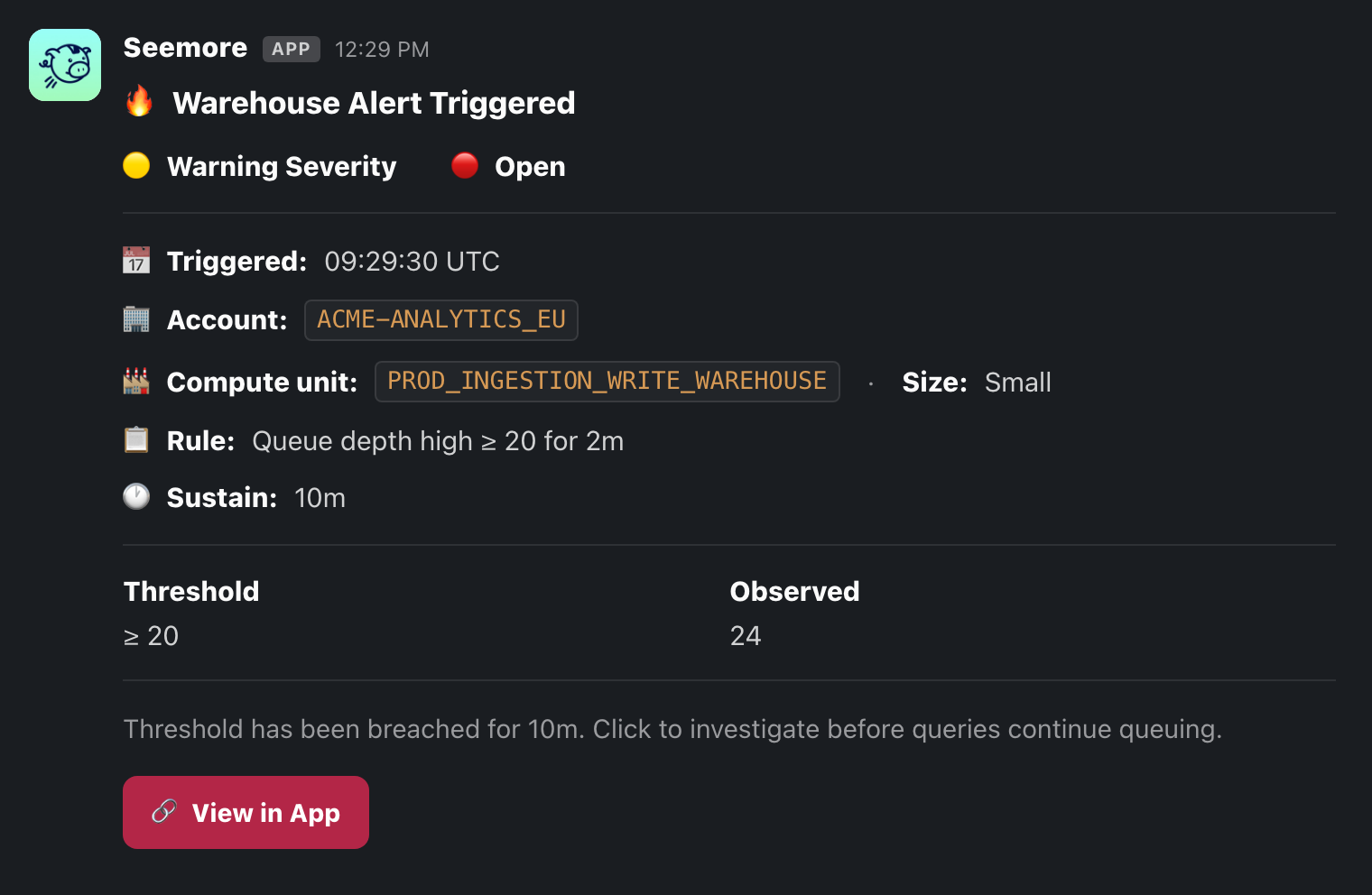
* When a rule fires, Seemore sends a notification to every configured channel, the rule's **Status** flips to **Firing**, and the matching warehouse tile on the **Compute units** tab is highlighted.
* When the condition clears, the rule returns to **OK**, and — if you enabled it — a resolve notification is sent.
Example alert notification delivered to a channel
***
## Tips
* **Start with a sustain window of a few minutes.** Queueing is normal in short bursts; a 5-minute window catches sustained pressure without noise.
* **Scope broadly, then refine.** An account-wide *Queue depth high* rule is a good baseline; add warehouse-specific rules with tighter thresholds for your critical warehouses.
* **Pair alerts with automation.** [Burst Protector](/external-docs/fundamentals/our-features/automations/smart-pulse/burst-protector.md) can absorb the spikes your alerts are warning you about, automatically and within the same cost envelope.
***
## Related
* [Real Time Monitoring](/external-docs/fundamentals/our-features/real-time-monitoring.md) — the live fleet view these alerts run on top of.
* [Communication Channels](/external-docs/fundamentals/settings/communication-channels.md) — set up the Slack, Teams, and Email destinations alerts route to.
* [Anomaly Detection](/external-docs/fundamentals/our-features/monitoring-cost-management/anomalies-detection.md) — for daily cost-pattern alerts rather than live load.