> For the complete documentation index, see [llms.txt](https://docs.seemoredata.io/external-docs/llms.txt). Markdown versions of documentation pages are available by appending `.md` to page URLs; this page is available as [Markdown](https://docs.seemoredata.io/external-docs/fundamentals/settings/access-control/asset-groups.md).

# Asset Groups

Define which of your connected accounts a set of users is allowed to see.

## Overview

An asset group is a named set of the accounts you have connected to Seemore — Snowflake accounts, and the dbt, orchestration, and BI tools alongside them. Granting an asset group to a [team](/external-docs/fundamentals/settings/access-control/teams.md) (or directly to a user) is what makes the data behind those accounts visible; anything outside the group stays out of reach across the whole product.

Asset groups are the only mechanism that **restricts** what a non-Owner can see. [Domains](/external-docs/fundamentals/settings/domains.md), by contrast, only filter what is already visible.

{% hint style="info" %}
**Required role to configure:** [Owner](/external-docs/fundamentals/settings/user-roles.md).

Admins and below can see asset groups and select them when configuring a team, but only an Owner can create, edit, or delete them.
{% endhint %}

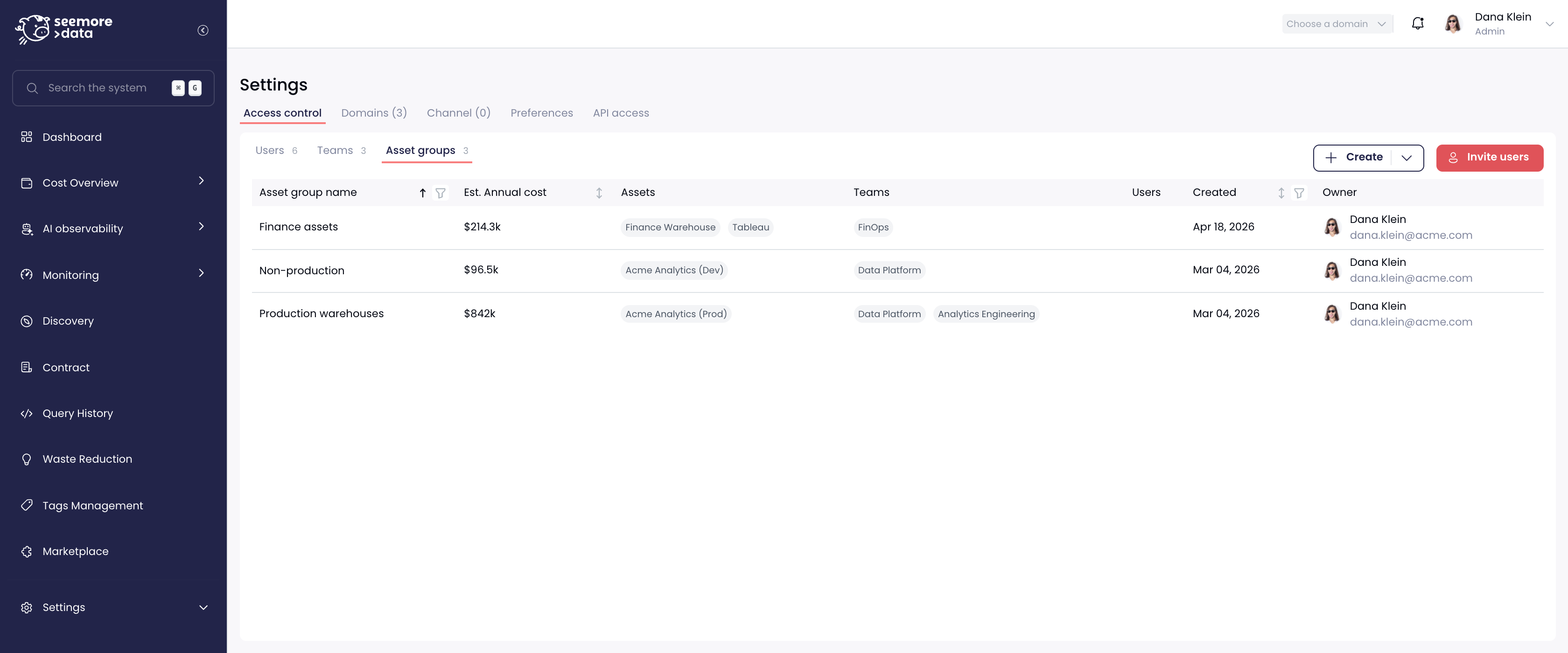
<figure><img src="https://3620459840-files.gitbook.io/~/files/v0/b/gitbook-x-prod.appspot.com/o/spaces%2FnSbIoBjUxWTGNWa9gGw7%2Fuploads%2Fgit-blob-084b9f1e31d726828f25c0f001ba9c28e9c07e5f%2Faccess-control-asset-groups.png?alt=media" alt="The Asset groups tab under Settings → Access control"><figcaption><p>Each asset group shows its estimated annual cost, the accounts it covers, and who it is granted to.</p></figcaption></figure>

***

## What the Columns Mean

| Column               | What it shows                                                                                       |
| -------------------- | --------------------------------------------------------------------------------------------------- |
| **Asset group name** | The group's name, as it appears when you attach it to a team or user.                               |
| **Est. Annual cost** | The projected annual spend of the accounts in the group — a quick sense of its scope.               |
| **Assets**           | The accounts the group currently resolves to.                                                       |
| **Teams**            | The [teams](/external-docs/fundamentals/settings/access-control/teams.md) this group is granted to. |
| **Users**            | Users the group is granted to directly, without going through a team.                               |
| **Owner**            | The user who created the group.                                                                     |

***

## How to Create an Asset Group

1. Go to **Settings → Access control → Asset groups**.
2. Click **Create** and choose **Asset Group**.
3. Fill in:
   * **Asset group name** — required.
   * **Description** — optional.
   * **Account** — pick the accounts to include explicitly, **or**
   * **Object tags** — pick tag values, and every account carrying one of them is included.
4. Click **Create Asset Group**.

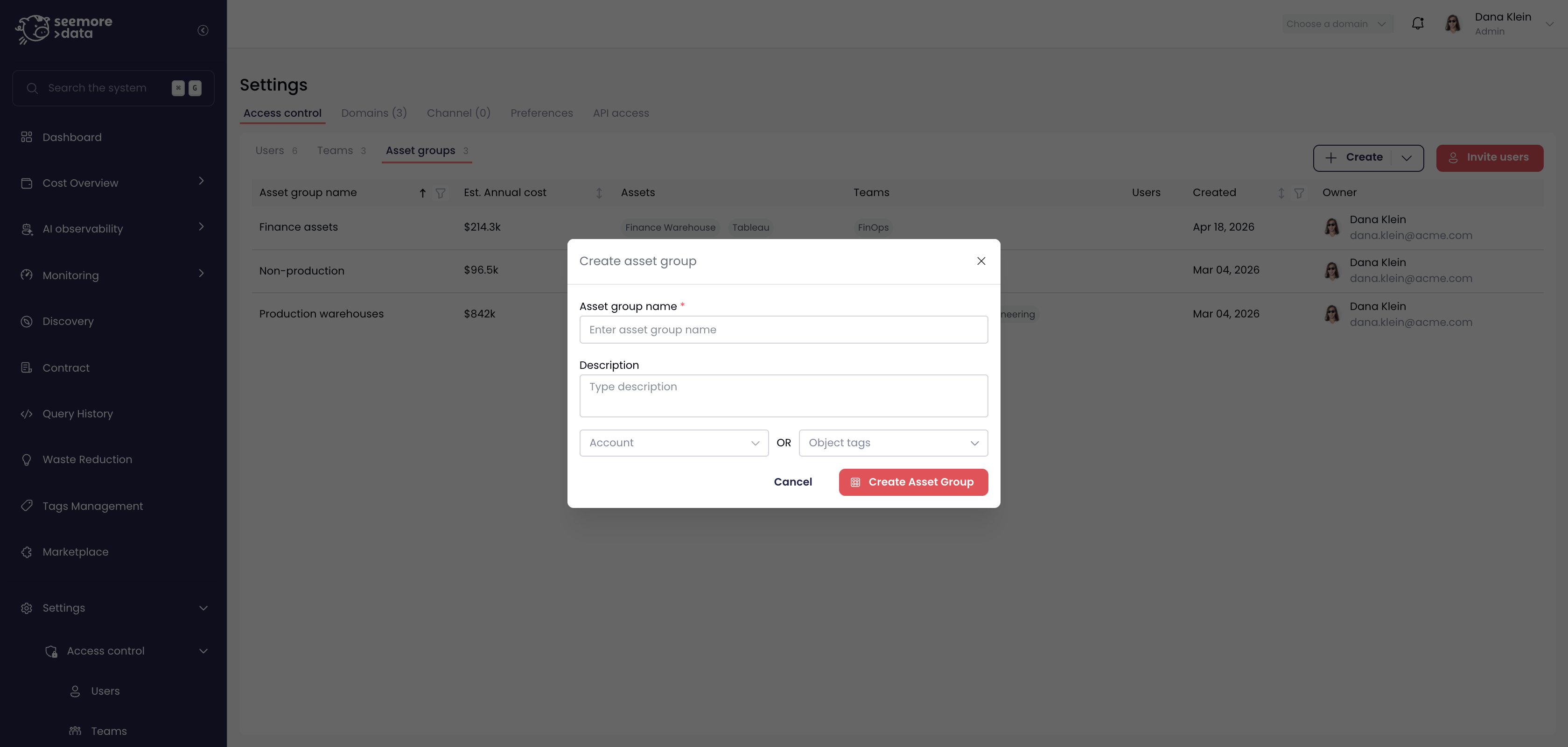
<figure><img src="https://3620459840-files.gitbook.io/~/files/v0/b/gitbook-x-prod.appspot.com/o/spaces%2FnSbIoBjUxWTGNWa9gGw7%2Fuploads%2Fgit-blob-b7d3758ef08c2970544ed8a7d4a33b3e854863f0%2Faccess-control-create-asset-group.png?alt=media" alt="The Create asset group dialog"><figcaption><p>Choose the accounts explicitly, or select object tags and let matching accounts be included automatically.</p></figcaption></figure>

***

## Choosing Accounts vs. Object Tags

The two selectors are alternatives — you may use either, or both, and the group resolves to everything that matches.

**Pick accounts explicitly** when the set is small and stable: "the production warehouse and the Tableau workspace it feeds."

**Use object tags** when you want the group to stay current on its own. A group defined as `environment = production` picks up any newly connected account tagged that way, with no edit to the group. See [Tags Management](/external-docs/fundamentals/settings/tags-management.md) for how to apply object tags.

{% hint style="info" %}
Tag-based groups are evaluated on every request, so tagging a new account grants access to it immediately — and removing the tag takes it away just as fast. Review tag-based groups whenever you change your tagging scheme.
{% endhint %}

***

## How to Edit or Delete an Asset Group

Hover a group's row and use the actions on the right:

* **Edit asset group** — change the name, description, accounts, or object tags. Access follows the change on the members' next request.
* **Delete asset group** — remove it after a confirmation. Every team and user it was granted to loses that access, so check the **Teams** and **Users** columns first.

***

## Notes & Best Practices

* **Group by trust boundary, not by convenience** — production versus non-production, or one group per business unit, tends to age well.
* **Name groups after what they contain**, since the name is all an Admin sees when attaching a group to a team.
* **Grant through teams**, not directly to users, so access stays legible in one place.
* **Remember the single-account fallback.** In a workspace with exactly one Snowflake account connected, a user with no grants at all still sees that account — asset groups start restricting once there is more than one account or the user has any grant. See [Access Control](/external-docs/fundamentals/settings/access-control.md).
* **Owners bypass asset groups entirely.** If someone must not see an account, they cannot be an Owner.