> For the complete documentation index, see [llms.txt](https://docs.seemoredata.io/external-docs/llms.txt). Markdown versions of documentation pages are available by appending `.md` to page URLs; this page is available as [Markdown](https://docs.seemoredata.io/external-docs/fundamentals/settings/access-control/identity-provider-sync.md).
# Identity Provider Sync
Drive Seemore roles and team membership from the groups in your identity provider, so access follows the directory you already maintain.
## Overview
If your workspace signs in through Okta with SCIM provisioning, you can stop maintaining roles and team membership by hand. Push your Okta groups to Seemore, then map each group to:
* the [**roles**](/external-docs/fundamentals/settings/user-roles.md) its members should hold, and
* the [**teams**](/external-docs/fundamentals/settings/access-control/teams.md) its members should belong to.
From then on, a change in Okta is the only change you make. Adding someone to the *Analytics* group gives them the Analytics role and team on their next sign-in; removing them takes both away.
{% hint style="info" %}
**Required role to configure:** [Admin](/external-docs/fundamentals/settings/user-roles.md) or higher.
Granting or removing the **Owner** role on a group is reserved for [Owners](/external-docs/fundamentals/settings/user-roles.md). Admins can assign every other role.
{% endhint %}
{% hint style="warning" %}
Group sync is available for **Okta** connections with SCIM provisioning enabled. Automated provisioning is not available for Microsoft Entra ID — see [Setup Microsoft Entra ID SSO](/external-docs/fundamentals/getting-set-up/authentication/setup-entra-id-sso.md).
{% endhint %}
***
## Prerequisites
1. An Okta connection configured in Seemore, with **Enable SCIM provisioning** turned on and a SCIM token created. See [Setup Okta SSO](/external-docs/fundamentals/getting-set-up/authentication/setup-okta-sso.md).
2. **Push Groups** enabled in Okta for the Seemore application, listing the groups you want to map. Only the groups you explicitly push appear in Seemore.
3. For team mapping, the [teams](/external-docs/fundamentals/settings/access-control/teams.md) you intend to map must already exist in Seemore.
***
## Where to Find the Mappings
1. Go to **Settings → Preferences → Authentication**.
2. Hover the **Okta** card and click **Edit**.
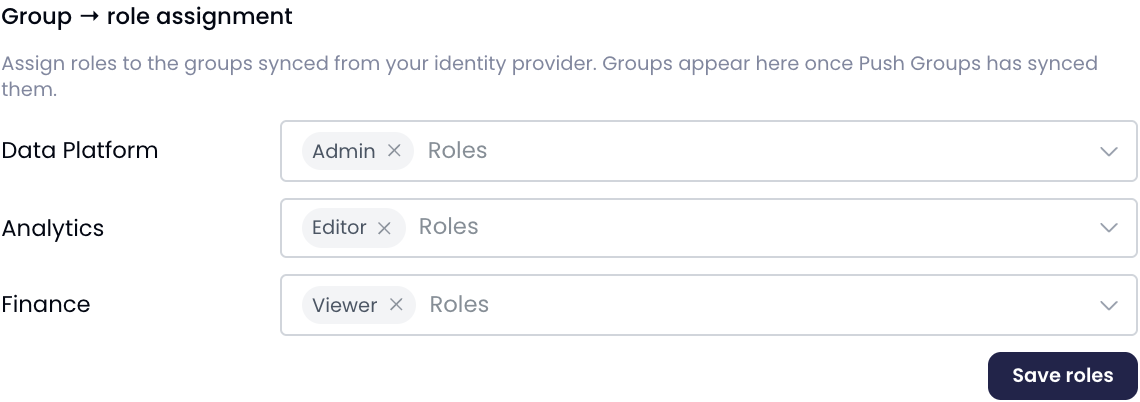
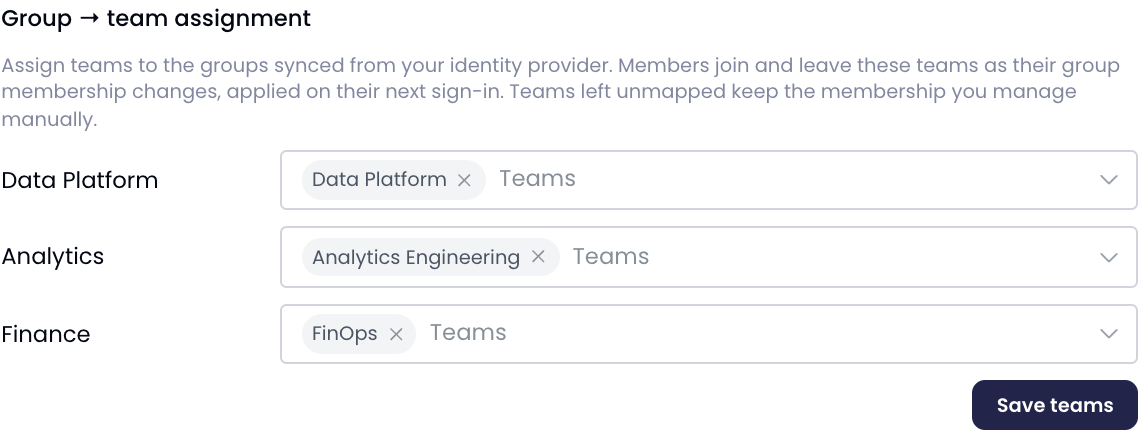
3. Continue to the **SCIM** step. Below the SCIM endpoint and tokens you will find **Group → role assignment** and **Group → team assignment**.
Both sections list the groups Okta has pushed. If a group is missing, confirm it is selected under **Push Groups** in Okta, then reopen the page.
***
## Syncing Roles
Assign one or more Seemore roles to each group, then click **Save roles**.
Each pushed group is mapped to the Seemore roles its members receive.
**How role resolution works**
* A user receives the **combined roles of every group** they belong to. Someone in both *Analytics* (Editor) and *Platform Admins* (Admin) is treated as an Admin, since roles are [hierarchical](/external-docs/fundamentals/settings/user-roles.md).
* Roles apply on the user's **next sign-in**. Assign them before the person signs in again, or ask them to sign out and back in.
* **Your groups are authoritative.** On each sign-in a user's roles are reconciled to match what their groups grant, so removing a role from a group — or removing the user from the group — revokes it.
* Groups you leave with no roles grant none. A group left untouched keeps whatever it had; saving only changes the groups you edited.
***
## Syncing Teams
Assign one or more Seemore teams to each group, then click **Save teams**.
Each pushed group is mapped to the Seemore teams its members join.
**How team membership is applied**
* Members join and leave the mapped teams as their group membership changes, applied on their **next sign-in**.
* **Only mapped teams are managed.** A team that no group points at is left completely alone, so membership you added by invitation or on the [Teams](/external-docs/fundamentals/settings/access-control/teams.md) page is never overwritten.
* Within the mapped teams, your directory wins: if a user is no longer in the group that granted a team, they are removed from that team on their next sign-in.
* Because teams carry [asset groups](/external-docs/fundamentals/settings/access-control/asset-groups.md), mapping a group to a team is what actually grants data access. Set the team's access up first, then map the group to it.
* Sign-ins that carry no group information — a password or Google sign-in, for example — leave team membership untouched.
{% hint style="info" %}
Saving either mapping also switches the connection to add users to your workspace automatically on first sign-in, so someone who exists only in a mapped group does not need a separate invitation.
{% endhint %}
***
## A Worked Example
Suppose you want your analytics engineers to be Editors with access to the production warehouses.
1. In Seemore, create the asset group **Production warehouses** covering those accounts.
2. Create the team **Analytics Engineering** and grant it that asset group.
3. In Okta, push the **Analytics** group to the Seemore application.
4. In **Group → role assignment**, map **Analytics → Editor** and save.
5. In **Group → team assignment**, map **Analytics → Analytics Engineering** and save.
From now on, adding someone to the Okta **Analytics** group is all it takes. On their next sign-in they become an Editor with access to the production warehouses; removing them from the group reverses both.
***
## Troubleshooting
| Symptom | Cause | Resolution |
| ---------------------------------------------- | ---------------------------------------------------------------------- | ------------------------------------------------------------------------------------------------------------- |
| Group is missing from either section | The group has not been pushed from Okta | Add it under **Push Groups** in Okta, then reopen the Authentication page |
| Neither section is shown | SCIM is not enabled and saved on the connection | Turn on **Enable SCIM provisioning**, save, then reopen the connection |
| A role or team change has not taken effect | The user has not signed in since the change | Changes apply on the next sign-in — ask them to sign out and back in |
| The team list is empty | No teams exist yet | Create the team first under **Settings → Access control → Teams** |
| Cannot assign the **Owner** role | Only an Owner may grant or remove the Owner role | Ask an Owner to make the change |
| A member kept a team you removed the group for | Another mapping, an invitation, or a manual edit also grants that team | Check the team's membership on the [Teams](/external-docs/fundamentals/settings/access-control/teams.md) page |
***
## Notes & Best Practices
* **Keep one group per role level.** Groups that mean two things at once are hard to audit later.
* **Map access, not people.** Once the mapping is in place, resist editing membership in Seemore for mapped teams — the next sign-in will reconcile it back.
* **Change roles before the sign-in**, since a role a user already holds in their session stays until they sign in again.
* **Review the mapping after renaming or deleting a Seemore team**, as deleting a team also removes it from every group mapping.