> For the complete documentation index, see [llms.txt](https://docs.seemoredata.io/external-docs/llms.txt). Markdown versions of documentation pages are available by appending `.md` to page URLs; this page is available as [Markdown](https://docs.seemoredata.io/external-docs/fundamentals/settings/access-control/teams.md).
# Teams
Group users together and grant them data access and a shared default view in one place.
## Overview
A team is a named group of users that carries two things for everyone in it:
* **Access** — the [asset groups](/external-docs/fundamentals/settings/access-control/asset-groups.md) whose accounts the members may see.
* **Domains** — the [domain](/external-docs/fundamentals/settings/domains.md) views the members can pick from.
Teams are the practical way to manage access at scale. Instead of granting accounts user by user, you describe the access once on a team and then manage people by moving them in and out of it.
{% hint style="info" %}
**Required role to configure:** [Admin](/external-docs/fundamentals/settings/user-roles.md) or higher.
Users with lower roles can see teams and their membership but cannot create, edit, or delete them. Choosing which **asset groups** a team grants is additionally limited to the team's owner and to [Owners](/external-docs/fundamentals/settings/user-roles.md).
{% endhint %}
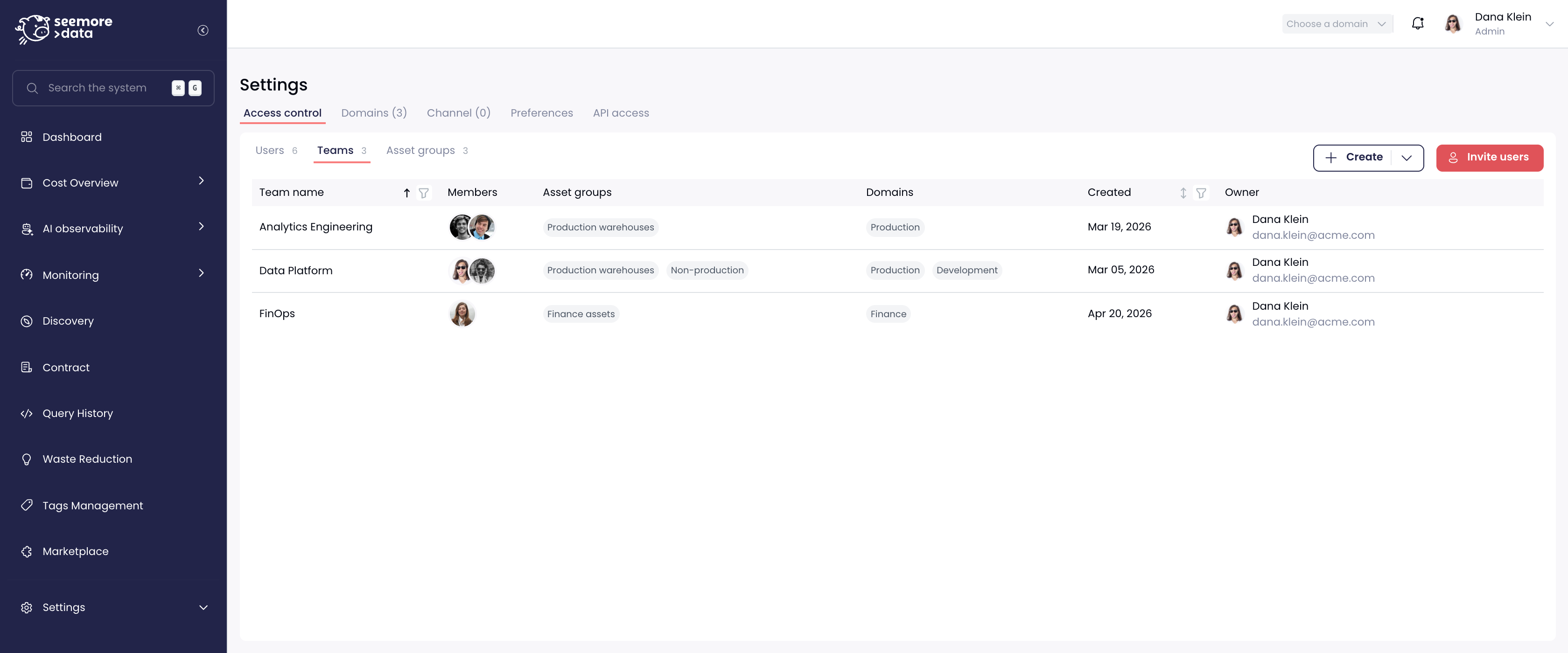
Each team shows its members, the asset groups it grants, and its domains.
***
## How to Create a Team
1. Go to **Settings → Access control → Teams**.
2. Click **Create** and choose **Team**.
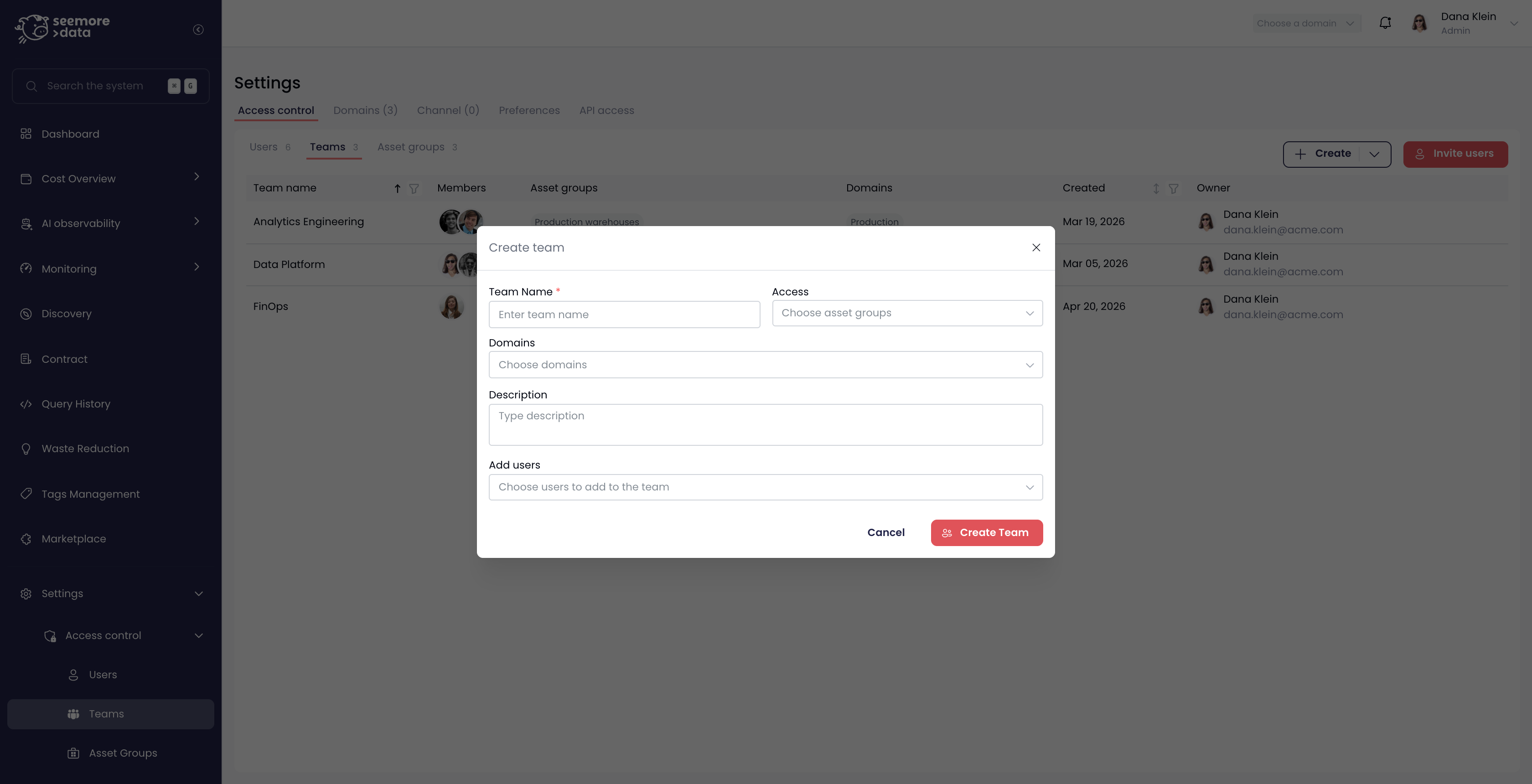
3. Fill in:
* **Team name** — required, and what members see everywhere teams are referenced.
* **Access** — the [asset groups](/external-docs/fundamentals/settings/access-control/asset-groups.md) this team grants. Every member gains access to all accounts those groups cover.
* **Domains** — the [domains](/external-docs/fundamentals/settings/domains.md) available to members from the domain selector.
* **Description** — optional, but worth writing down why the team exists.
* **Add users** — the members. You can also leave this empty and add people later from the [Users](/external-docs/fundamentals/settings/access-control/users.md) tab.
4. Click **Create Team**.
A team's name, the asset groups it grants, its domains, and its members.
The user who creates the team becomes its **owner**, shown in the last column of the table.
***
## How to Edit or Delete a Team
Hover a team's row and use the actions on the right:
* **Edit team** — change the name, description, members, asset groups, or domains. Changes apply immediately.
* **Delete team** — remove the team after a confirmation. Its members keep their accounts and any access granted by other teams, but lose whatever this team was granting.
{% hint style="warning" %}
Deleting a team also clears it from any [identity provider group mapping](/external-docs/fundamentals/settings/access-control/identity-provider-sync.md) that pointed at it. Members who were in the team only through that mapping lose the access it granted.
{% endhint %}
***
## How Team Access Adds Up
A user's access is the **union** of everything granted to them, so teams only ever add:
* Belonging to two teams means access to both teams' asset groups.
* Removing someone from a team removes only what that team granted — access from their other teams, and anything granted directly on their user, stays.
* Team membership grants **data access**, never permissions. What a member is allowed to change is still decided by their [role](/external-docs/fundamentals/settings/user-roles.md).
***
## Notes & Best Practices
* **Mirror how your organization actually works** — one team per function (platform, analytics, finance) is easier to reason about than one team per project.
* **Attach the domain that matches the team's asset groups**, so members land on a relevant view instead of the whole estate.
* **Prefer fewer, broader teams.** Access that is easy to read is access you can audit.
* If your users come from Okta, map your identity provider's groups to these teams instead of maintaining membership by hand — see [Identity Provider Sync](/external-docs/fundamentals/settings/access-control/identity-provider-sync.md).