For the complete documentation index, see llms.txt. This page is also available as Markdown.

SeeMore Data Slack App

Connect the SeeMore Data Slack app to your workspace to post alerts and reports to any channel, and analyze them with the AI assistant without leaving Slack.

Overview

The SeeMore Data Slack app connects your Slack workspace to SeeMore Data once, instead of creating a webhook for every channel. With the app connected you can:

  • Post to any channel in the workspace — pick it from a list when you add a Slack channel in SeeMore Data.

  • Analyze alerts and reports in Slack. Anomaly alerts and daily or weekly cost reports sent through the app carry an ✨ Analyze button. A click runs the SeeMore Data AI assistant and posts its answer in a thread under the message.

Webhook channels keep working as before. You can use both, and switch an existing webhook channel to the app at any time.

Required role to configure: Admin or higher.

Users with lower roles can view the connected workspaces and Slack channels but cannot connect, reconnect, or disconnect a workspace, or add and edit channels.


Connect your Slack workspace

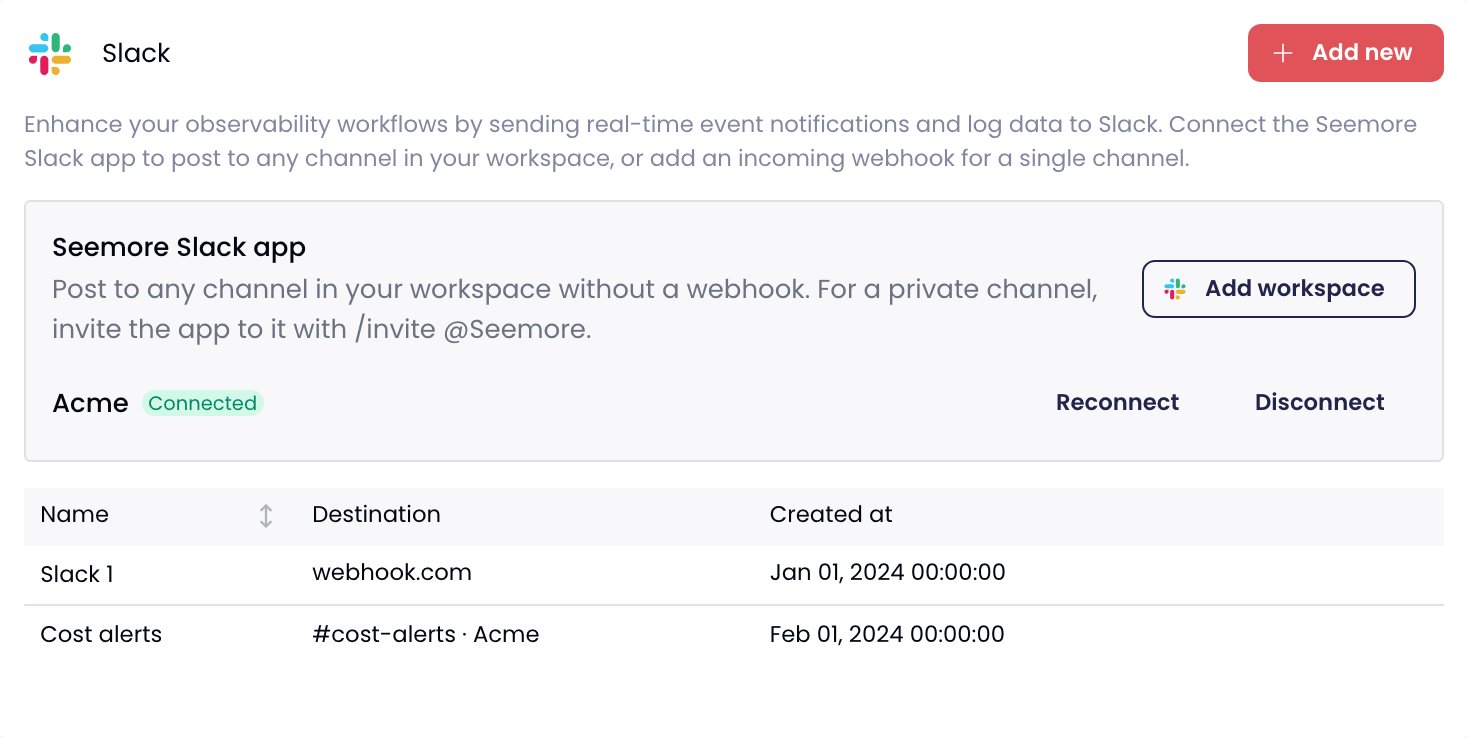
  1. Go to Settings → Channel configuration → Slack.

  2. In the Seemore Slack app panel, click Add to Slack. Once a workspace is connected, the button reads Add workspace and connects another one.

  3. Slack opens and asks you to approve the app for your workspace. Review the permissions and click Allow.

  4. You return to SeeMore Data, and the workspace is listed as Connected.

The Slack settings page with the Seemore Slack app panel, a connected workspace with Reconnect and Disconnect, and the list of Slack channels
A connected workspace, and the Slack channels that post to it
What the app can do in Slack

When you connect the app, Slack asks you to allow it to:

  • Post messages to channels, including public channels it hasn't been added to.

  • See the list of channels in the workspace, so you can pick one in SeeMore Data. Private channels appear only after the app is invited to them.

The app does not read the messages in your channels. Separately, each person who uses Analyze signs in with Slack once, which shares their Slack identity and email with SeeMore Data (see Connect your Slack account).


Add a Slack channel

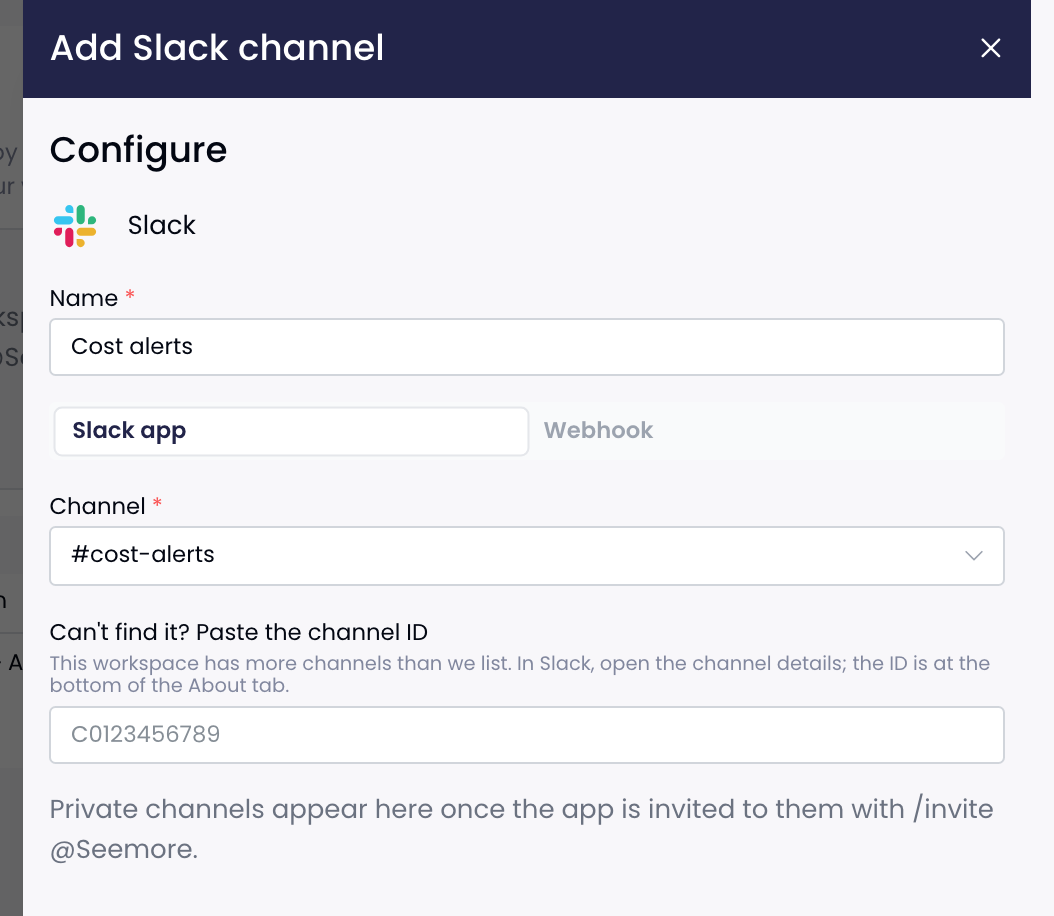
  1. On the Slack settings page, click Add new.

  2. Enter a Name for the channel.

  3. Keep Slack app selected. If you connected more than one workspace, choose the Workspace.

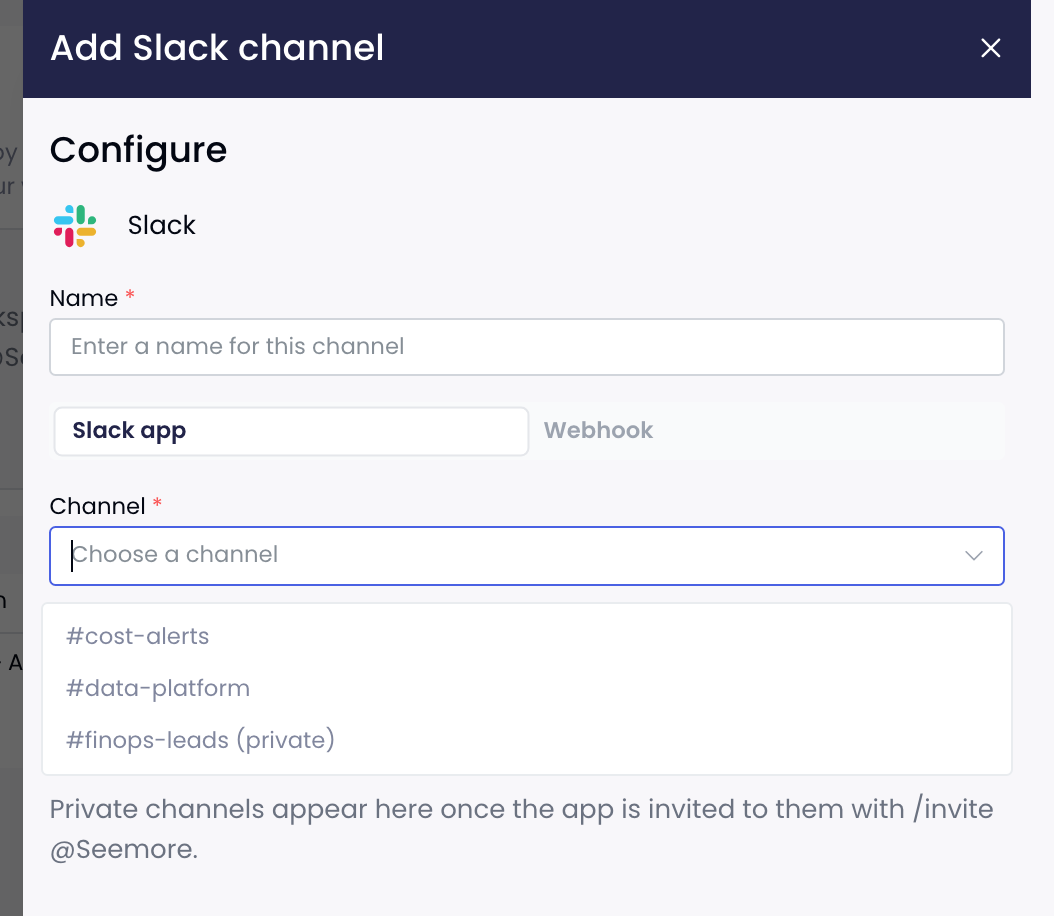
  4. Choose the Channel. Private channels are marked (private).

  5. Click Save & Test. SeeMore Data posts a test message to the channel.

The Add Slack channel form with a name, the Slack app method and the #cost-alerts channel selected
Adding a channel through the Slack app
The channel is now available wherever you choose where alerts and reports go, such as anomaly detection, budgets and reports.

The channel list open in the Add Slack channel form, showing public channels and a private channel
Choosing from the workspace's channels
A private channel isn't listed

The app sees a private channel only once it is a member. In Slack, open the channel and run:

Then reopen the channel list in SeeMore Data.

The channel I want isn't in the list

In a very large workspace the list is shortened. Use Can't find it? Paste the channel ID below the channel list. In Slack, open the channel's details: the channel ID is at the bottom of the About tab.

Switch a webhook channel to the app

Open the channel from the Slack channels list, switch it from Webhook to Slack app, choose the channel, and click Save & Test. Its alerts and reports keep going to the same places in SeeMore Data.


Analyze an alert or report

Anomaly alerts and daily or weekly cost reports sent through the Slack app carry an ✨ Analyze button:

  • For an anomaly, the AI assistant looks for the root cause of the cost change.

  • For a daily or weekly report, it explains what drove the period's cost changes and points out anything worth acting on.

An anomaly alert from SeeMore Data in a Slack channel, with the Investigate in App and Analyze buttons
An anomaly alert with the Analyze button
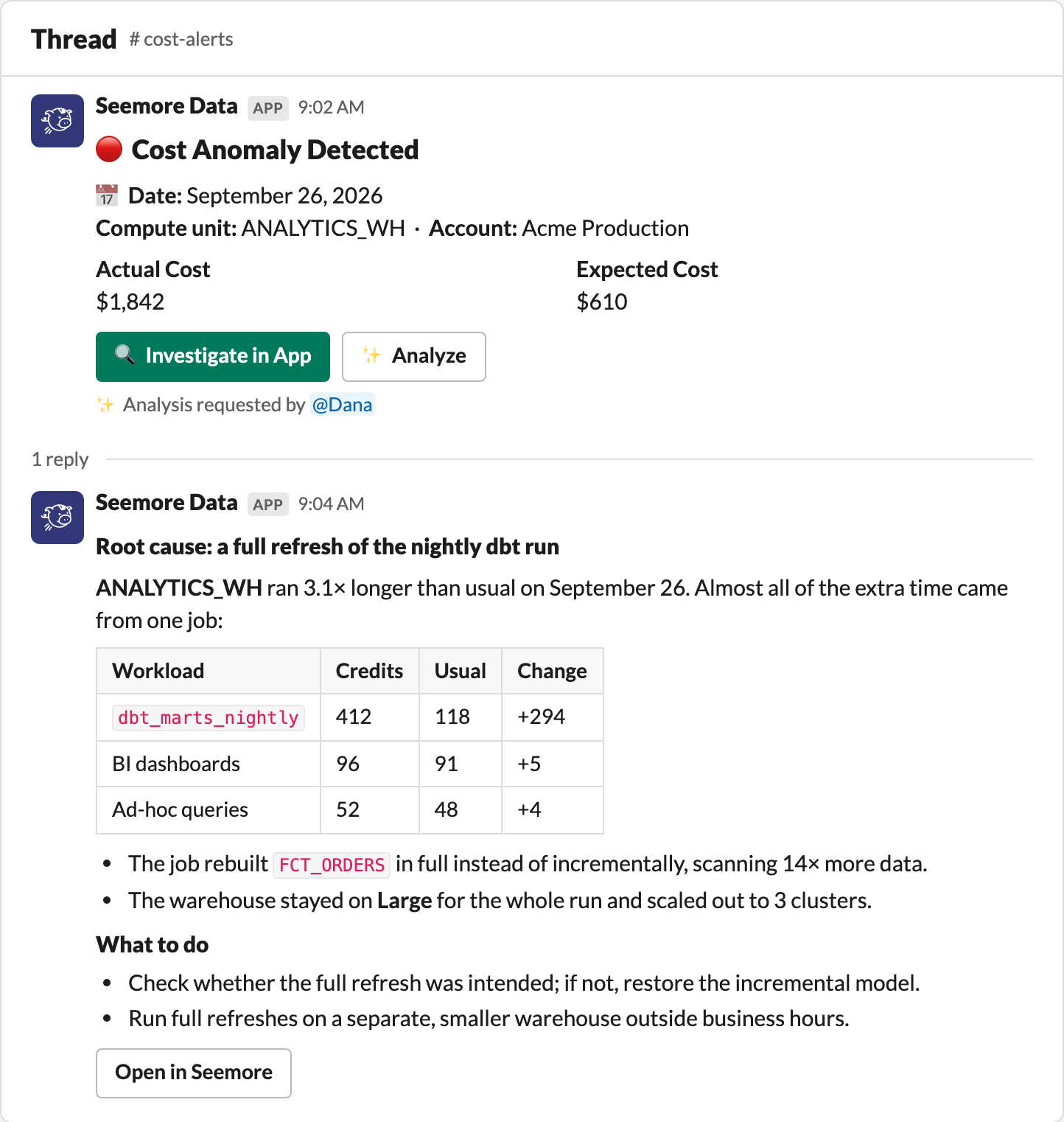
When someone clicks Analyze:

  1. The message notes who asked for the analysis.

  2. "Analyzing…" appears in a thread under the message, and is replaced by the answer when it's ready.

  3. Open in Seemore opens the full conversation in the AI assistant, where you can ask follow-up questions.

The alert noting who asked for the analysis, and the AI assistant answer in its thread with an Open in Seemore button
The answer in the alert thread
Each message is analyzed once. If someone clicks Analyze while an analysis is running or after it finished, they get a link to it instead of a second one. If an analysis fails, the message says so and Analyze can be clicked again.

Required role to analyze: Viewer or higher.

The assistant runs with the SeeMore Data access of the person who clicked, so its answer only uses data they can see.

Connect your Slack account (first time only)

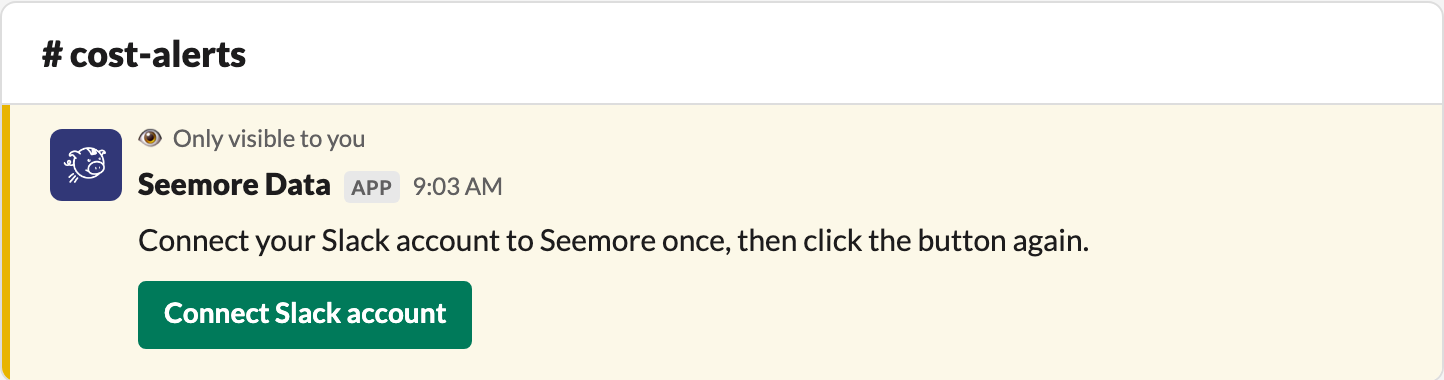
The first time you click Analyze, Slack shows you (and only you) a Connect Slack account button, because SeeMore Data needs to know which of its users you are:

A message only visible to you, asking you to connect your Slack account, with a Connect Slack account button
Shown only to you, the first time you click Analyze
  1. Click Connect Slack account. SeeMore Data opens; sign in if asked.

  2. Slack asks you to sign in with Slack and share your name, email and Slack identity with SeeMore Data. Approve it.

  3. You return to SeeMore Data with a message that your Slack account is connected.

  4. Go back to Slack and click Analyze again.

You only do this once per workspace. Everyone who wants to use Analyze connects their own Slack account.


Reconnect or disconnect a workspace

In the Seemore Slack app panel, next to each workspace:

  • Reconnect runs the Slack approval again. Use it when SeeMore Data adds a capability that needs new Slack permissions, or when the app stops posting after a change in Slack.

  • Disconnect removes the app from SeeMore Data for that workspace. Every Slack channel configured through that workspace is removed, and alerts stop posting to them. Webhook channels aren't affected.


Troubleshooting

  • Nothing is posted to a channel: open the channel in SeeMore Data and click Save & Test. If the channel is private, make sure the app is invited to it.

  • The workspace shows as disconnected: the app was removed from the workspace in Slack. Click Reconnect.

  • Analyze keeps asking me to connect my Slack account: make sure you signed in to SeeMore Data with the user who is a member of the account the alert came from.

  • The analysis failed: click Analyze again. If it keeps failing, contact SeeMore Data support.

Last updated