> For the complete documentation index, see [llms.txt](https://docs.seemoredata.io/external-docs/llms.txt). Markdown versions of documentation pages are available by appending `.md` to page URLs; this page is available as [Markdown](https://docs.seemoredata.io/external-docs/fundamentals/our-features/query-analyzer.md).
# Query Analyzer
Query Analyzer is an Agent that generates a structured analysis of the selected query using available plan/profile/history signals.
## Overview
Query Analyzer is the **deep-dive analysis view for a single query execution or query pattern**. Use it to understand **why** a query is slow or expensive, pinpoint bottlenecks in the **query plan**, and generate optimization guidance with **Query Agent (beta)**.
{% hint style="info" %}
**Required role:** [Viewer](/external-docs/fundamentals/settings/user-roles.md) or higher.
Any authenticated user can run Query Analyzer and generate optimization guidance with the Query Agent.
{% endhint %}
### **Why use the Query Analyzer?**
Standard Snowflake history views use "pagination sorting," meaning they only sort the rows currently visible on your screen. **We perform backend sorting on all queries from the last 7 days.** This ensures that when you sort by duration or cost, you are seeing the true top outliers from your entire week's history, not just the current page.
{% hint style="warning" %}
**Prerequisite: Permissions Required** To use the **Analyze** button without internal errors,\
Please make sure you provided the [required permission](https://docs.seemoredata.io/external-docs/fundamentals/getting-set-up/setting-integrations/snowflake/create-snowflake-user-and-privileges#allowlist-the-datamaze-ip-0-15)
{% code overflow="wrap" %}
```sql
GRANT MANAGE WAREHOUSES ON ACCOUNT TO ROLE seemore_user_role;
```
{% endcode %}
{% endhint %}
***
## **Key Capabilities**
### **Global Search & Advanced Filtering**
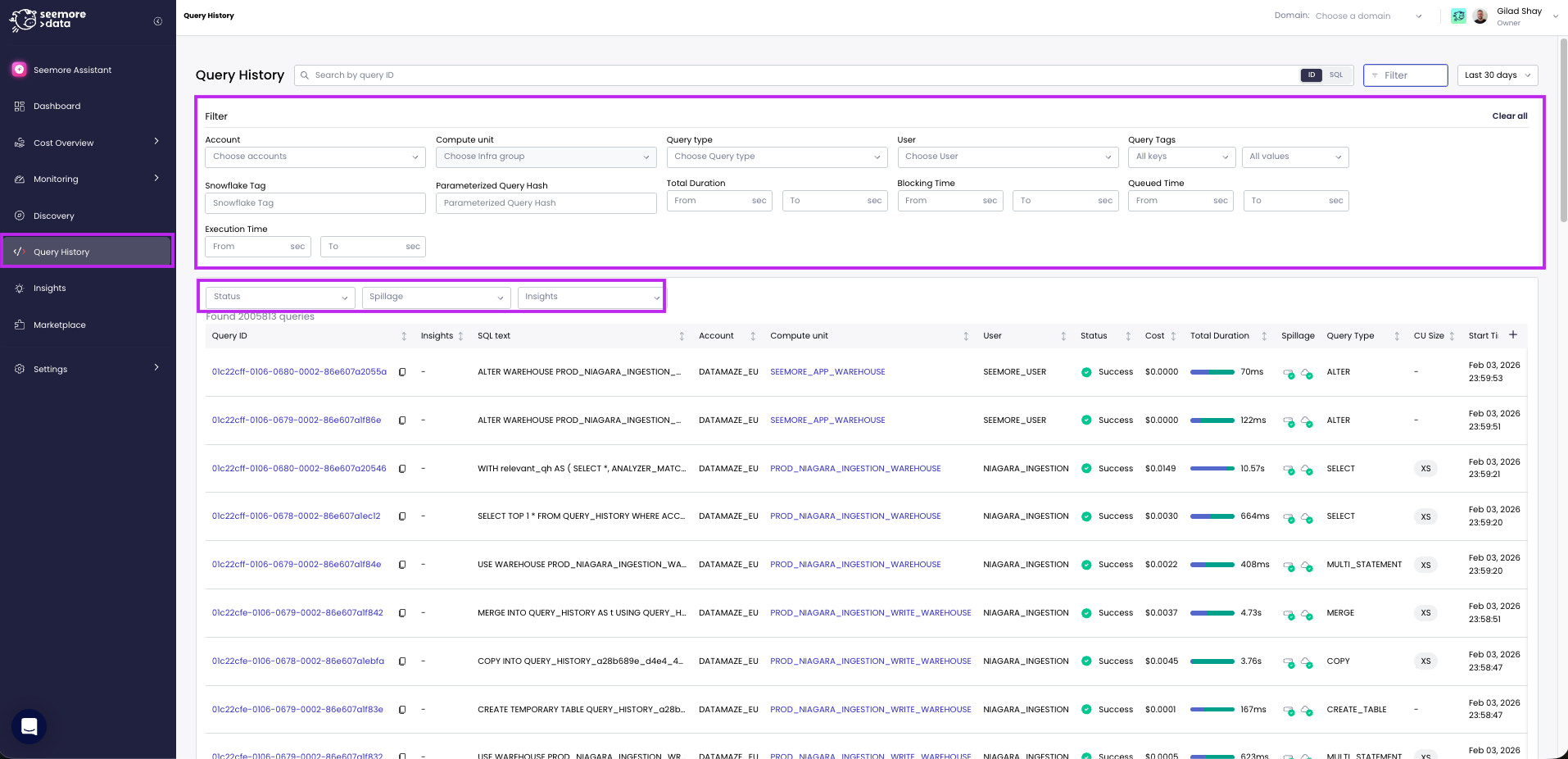
Locate problematic queries instantly using filters that connect insights, table dependencies, and execution metrics:
* **Performance Metrics:** Filter by **Queuing Time** (e.g., > 100 seconds) or **Execution Time**.
* **Resource Issues:** Filter specifically for **Remote Spillage**, **Local Spillage**, or **Exploding Joins**.
* **Insights:** Filter for queries where we have already detected optimization opportunities.
* **Text Search:** Search for any specific SQL text or Query ID across the entire 7-day history.
### **Deep Dive Analysis**
Clicking into a specific query provides a comprehensive breakdown:
* **Visual Execution Plan:** View the query plan and jump directly to the **most expensive nodes**.
* **Source & Destination Mapping:** Unique to our platform, we map exactly which tables are being read (Source) and, for DML operations, exactly where data is being written (Destination). This includes table size and clustering context.
* **Performance Summary:** An evaluation of time and cost to help determine if the query is performing normally.
### **The "Analyze" Button**
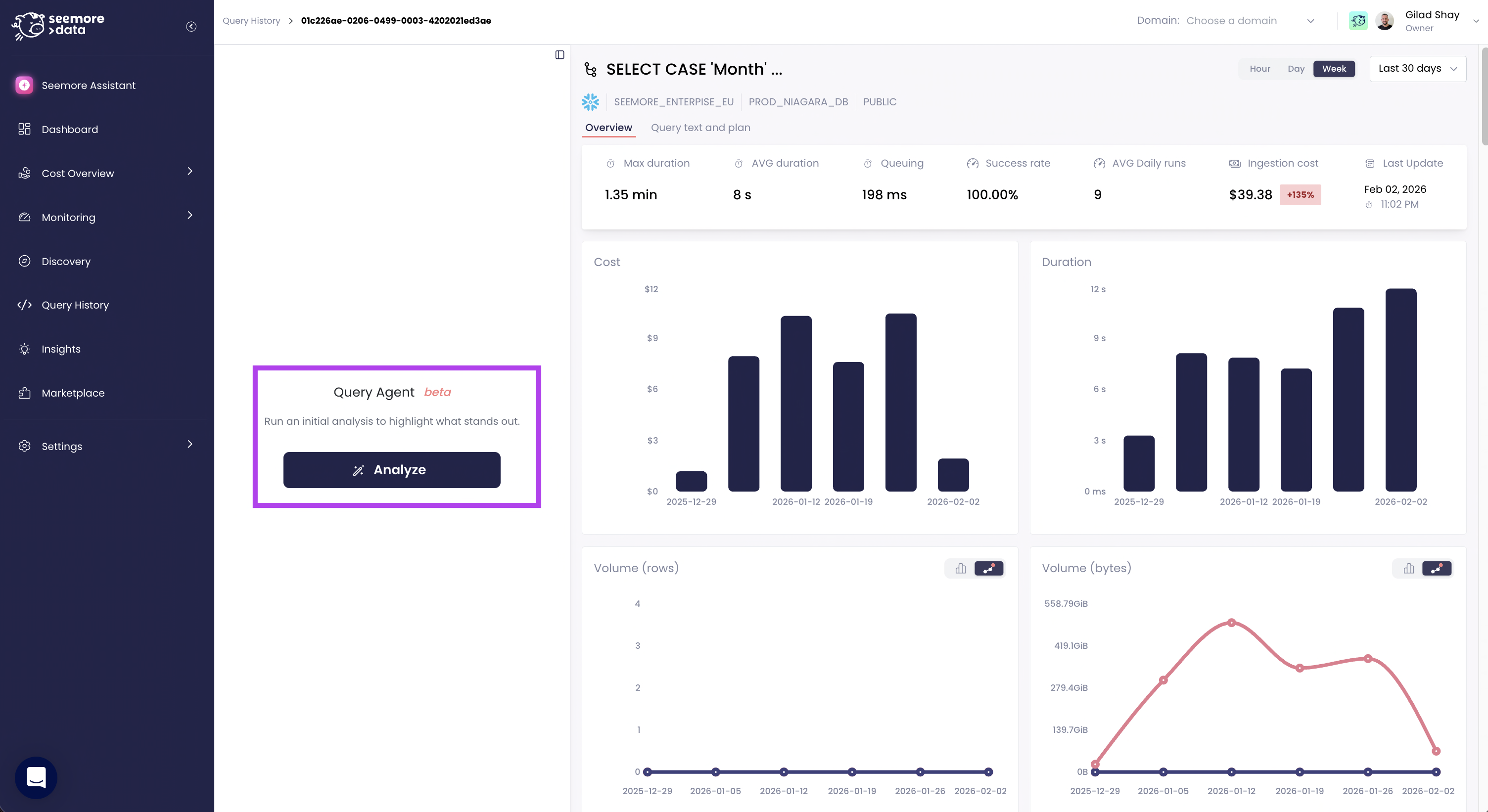
Clicking **Analyze** triggers a deep scan of the execution plan, metadata, and clustering statistics.
* **What it does:** It generates a business logic summary, resource metrics, and specific recommendations.
* **Recommendations:** The system may suggest increasing warehouse size (if heavy spillage is detected) or adding clustering columns to specific tables.
***
## **How to Use**
{% stepper %}
{% step %}
#### Look For a Query
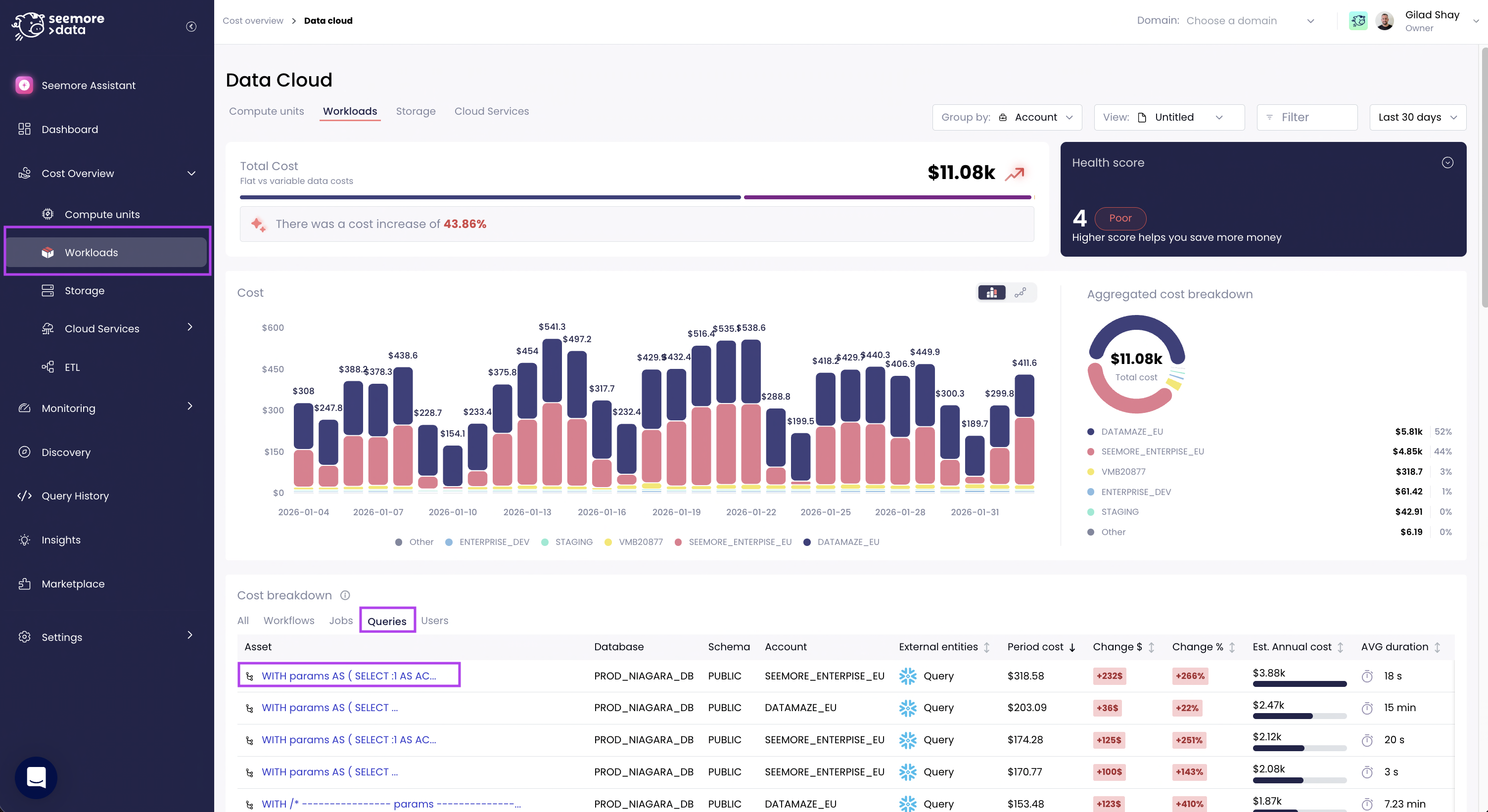
Wherever you can find a query just click on it, Workloads page for example:
{% endstep %}
{% step %}
#### **Filter & Sort**
Apply filters in the **Query History page** and look for the most problematic queries that should be optimized (e.g., "Has Remote Spillage").
* Sorting may take a moment because we are processing the full 7-day dataset to ensure accuracy.
{% endstep %}
{% step %}
#### **Select a Query**
Click on a query to open the details page.
{% endstep %}
{% step %}
#### **Run Analysis**
Click the Analyze button
{% endstep %}
{% step %}
#### **Share Results**
While there is no direct "Share" button (yet), the **Copy Link** function works perfectly if you need to send a specific analysis to a colleague.
{% endstep %}
{% endstepper %}
***
## **Optimizing Your Workflow**
* **Spillage:** If the Analyzer detects significant local or remote spillage, it will recommend resizing the warehouse. Note that this is currently a rule-based recommendation.
* **Clustering:** We identify if source tables lack clustering columns, which can often solve performance bottlenecks.