> For the complete documentation index, see [llms.txt](https://docs.seemoredata.io/external-docs/llms.txt). Markdown versions of documentation pages are available by appending `.md` to page URLs; this page is available as [Markdown](https://docs.seemoredata.io/external-docs/fundamentals/our-features/monitoring-cost-management/budget-groups.md).
# Budget Groups
This page explains how to set, monitor, and get alerts for spending using Budget Groups.
## Overview
Budget Groups let you track and control spend for groups of services, warehouses, users, or other billable entities.\
They provide clear financial visibility and timely alerts when spend approaches or exceeds your targets.
{% hint style="info" %}
**Required role to configure:** [Editor](/external-docs/fundamentals/settings/user-roles.md) or higher.
Users with lower roles can view Budget Groups but cannot create, edit, or delete them.
{% endhint %}
#### What You Can Budget For
You can define budgets for most **services** whose costs change frequently, including:
* Cloud Services such as:
* Auto-clustering
* Pipes / Snowpipes
* AI Services
* Query Acceleration
* Specific warehouses or groups of warehouses
* Users
* Jobs & Workflows
Budget Groups support both **broad scopes** (e.g., all auto-clustering costs) and **narrow scopes** (e.g., a single critical warehouse).
***
## How Budget Groups Work
Budget Groups function as **spend guardrails**, continuously tracking the cost of selected services or warehouses within a defined time window. Instead of discovering overruns at the end of the month, they provide **early, actionable signals** when spend begins to drift beyond expectations.
Each Budget Group is built around three core components:
* **Scope** – which services, warehouses, users, or workflows are being monitored
* **Time window** – how often the budget resets (daily, weekly, or monthly)
* **Budget amount** – the maximum dollar value you expect to spend in that window
After defining the budget amount, you configure **percentage-based alert thresholds**.\
For example, you may choose to be notified at:
* **50%** of the budget
* **90%** of the budget
* **100%** of the budget
As costs accumulate, the platform calculates progress toward the budget and triggers alerts immediately when a threshold percentage is crossed.
This creates clear value:
* **Prevent unexpected spikes** by catching unusual spend early
* **Align engineering and FinOps teams** around shared expectations
* **Support operational tuning** through consistent visibility
* **Create accountability** by assigning ownership for specific cost areas
In practice, Budget Groups operate as an **early-warning system**, helping teams react before spend exceeds planned levels.
***
## How to Create a Budget Group
> Follow these steps in the platform to create a new Budget Group:
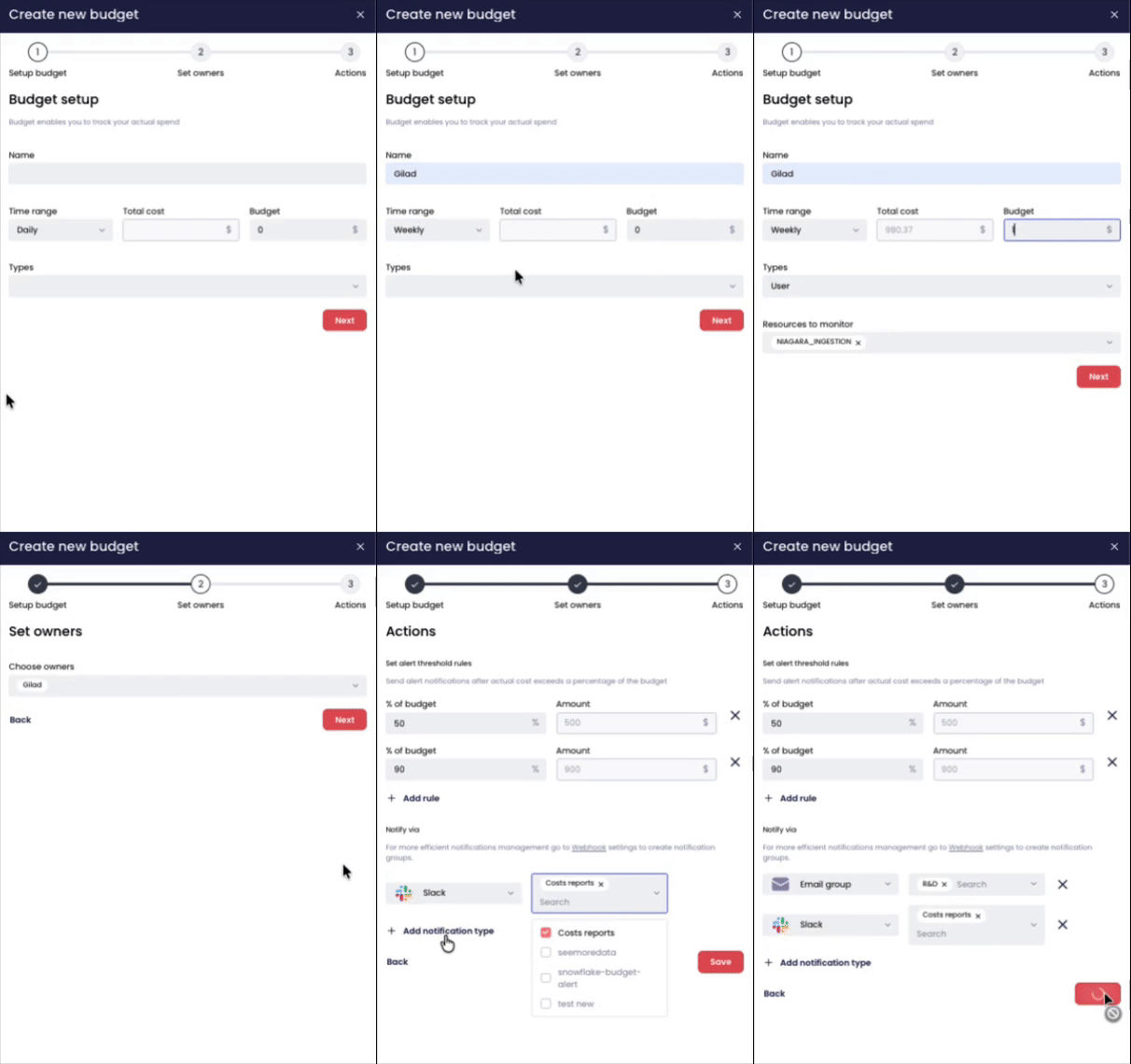
1. Go to **Monitoring → Budget groups**.
2. Click **Create Budget Group**.
3. Select the **scope** of services, warehouses, users, or workflows.
4. Choose a **time window** (Daily, Weekly, Monthly).
5. Define the **budget amount** in dollars based on historical spend.
6. Assign an **owner**.
7. Configure **alert thresholds in percentages**, such as 50%, 90%, or 100%.
8. Select where alerts should be sent, predefined channels or a specific email.\
([how to create channels in Seemore ](/external-docs/fundamentals/settings/communication-channels.md))
9. Save the Budget Group.
***
## Tracking Budget Group
To monitor the performance of an existing Budget Group:
1. Go to **Monitoring → Budget Groups,** to see the list of Budget Groups created.
2. Select the **Budget Group** you want to track.
3. Click on it to open the detailed view.
Inside the group’s page, you can see:
* The budget amount
* Current accumulated spend
* Progress toward each threshold
* Whether any alerts have been triggered
This view helps you understand how the group is trending and whether intervention is needed.\
In the main page you are able to filter the list by the budget period defined (all, daily, weekly and monthly)
***
## Notifications
When setting up a Budget Group, you choose **where alerts should be delivered**.\
You can use any of the [**Channels**](/external-docs/fundamentals/settings/communication-channels.md) defined in the platform:
* **Slack** channel
* **Microsoft Teams** channel
* **Email group**
You can also send alerts directly to a **specific email address** without using a predefined channel.
Alerts are sent automatically whenever a configured **percentage threshold** is crossed.
***